
Manually add or delete holdings
Manually add or remove stocks, funds, cash, and other holdings from your portfolio.
Add holdings to a portfolio
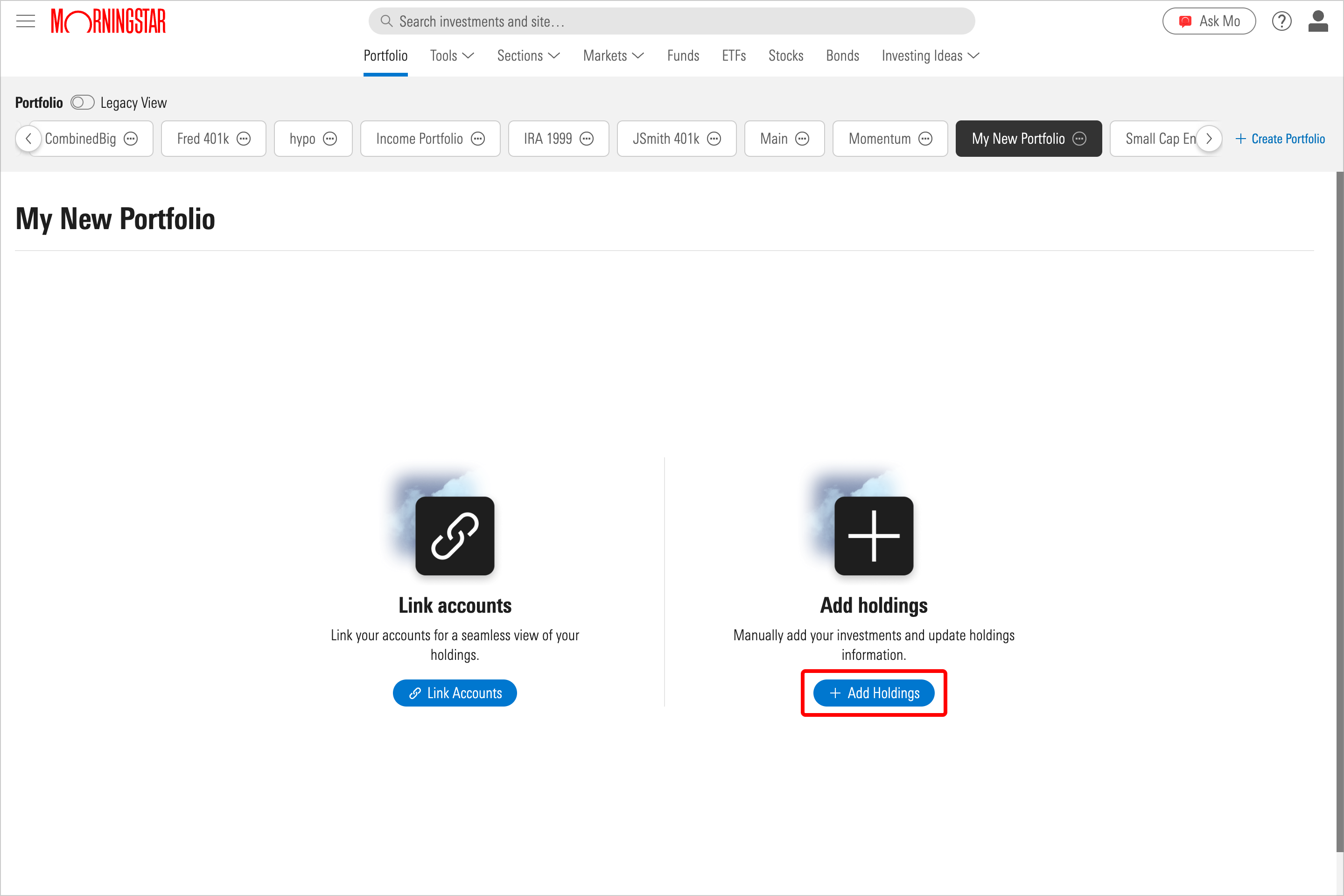
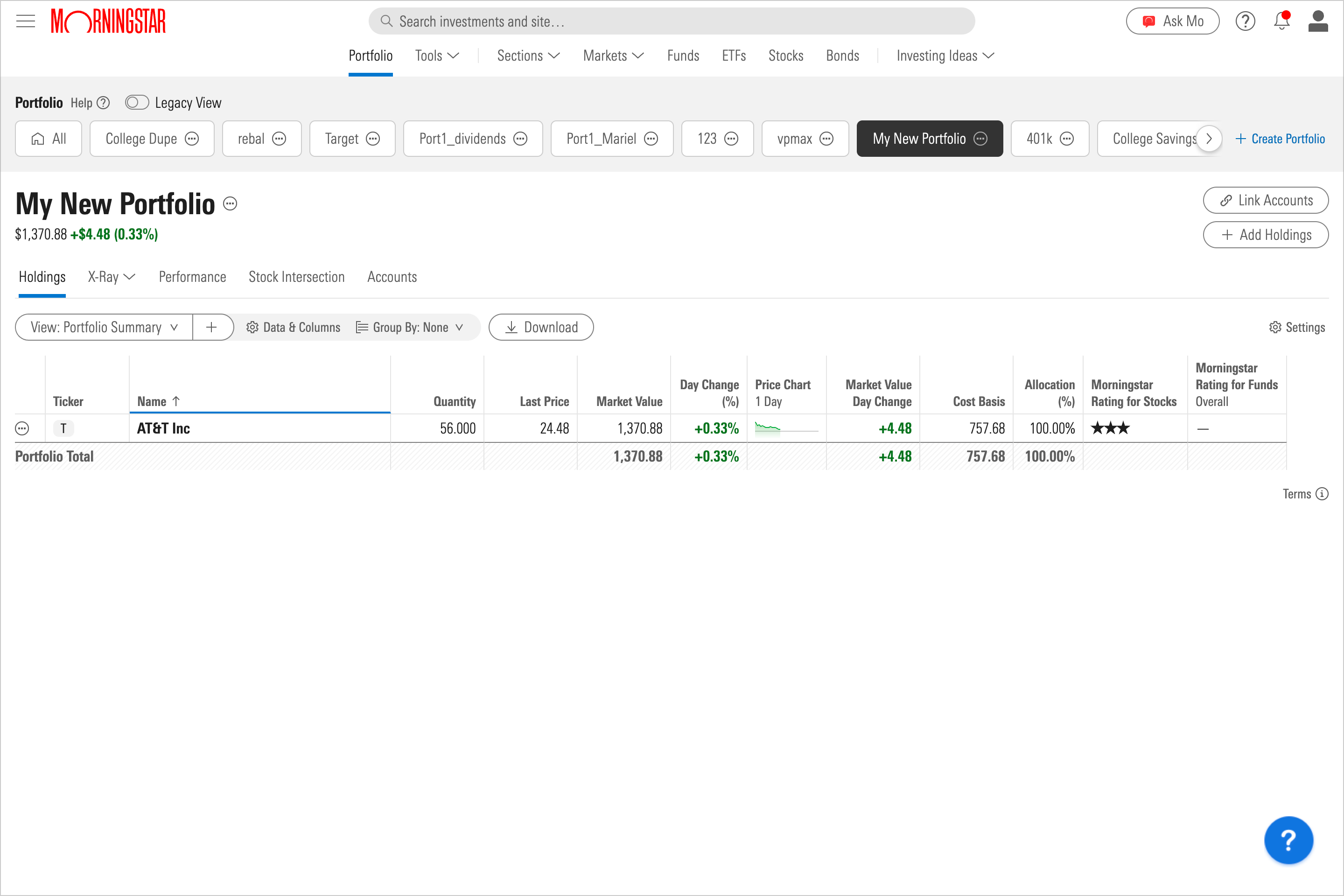
You can manually add stocks, funds, cash, ETFs, and indices to any of your portfolios in Morningstar Investor. If you’re creating a new portfolio, choose Add Holdings.
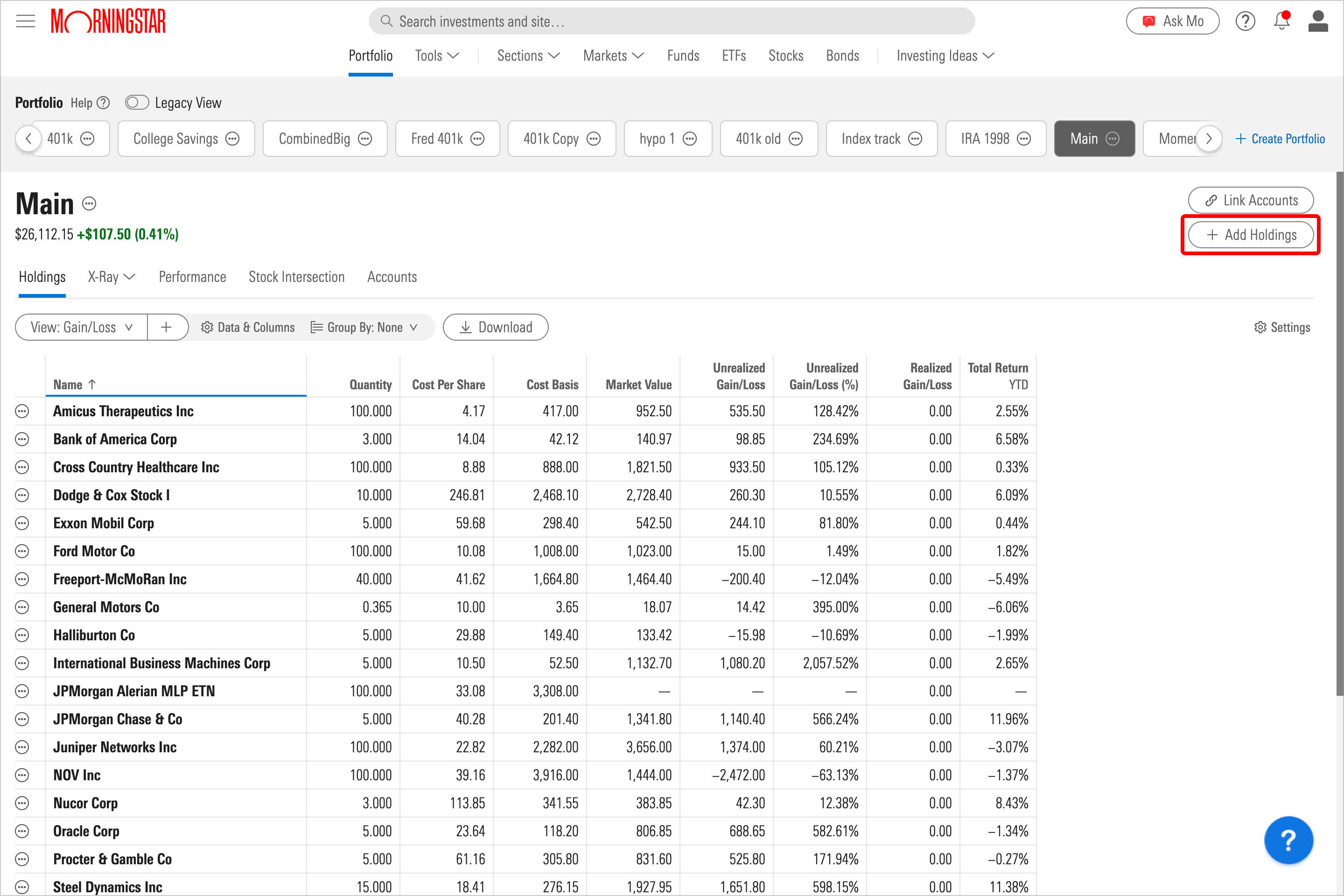
If you’re adding to an existing portfolio, select Add Holdings in the top-right corner.
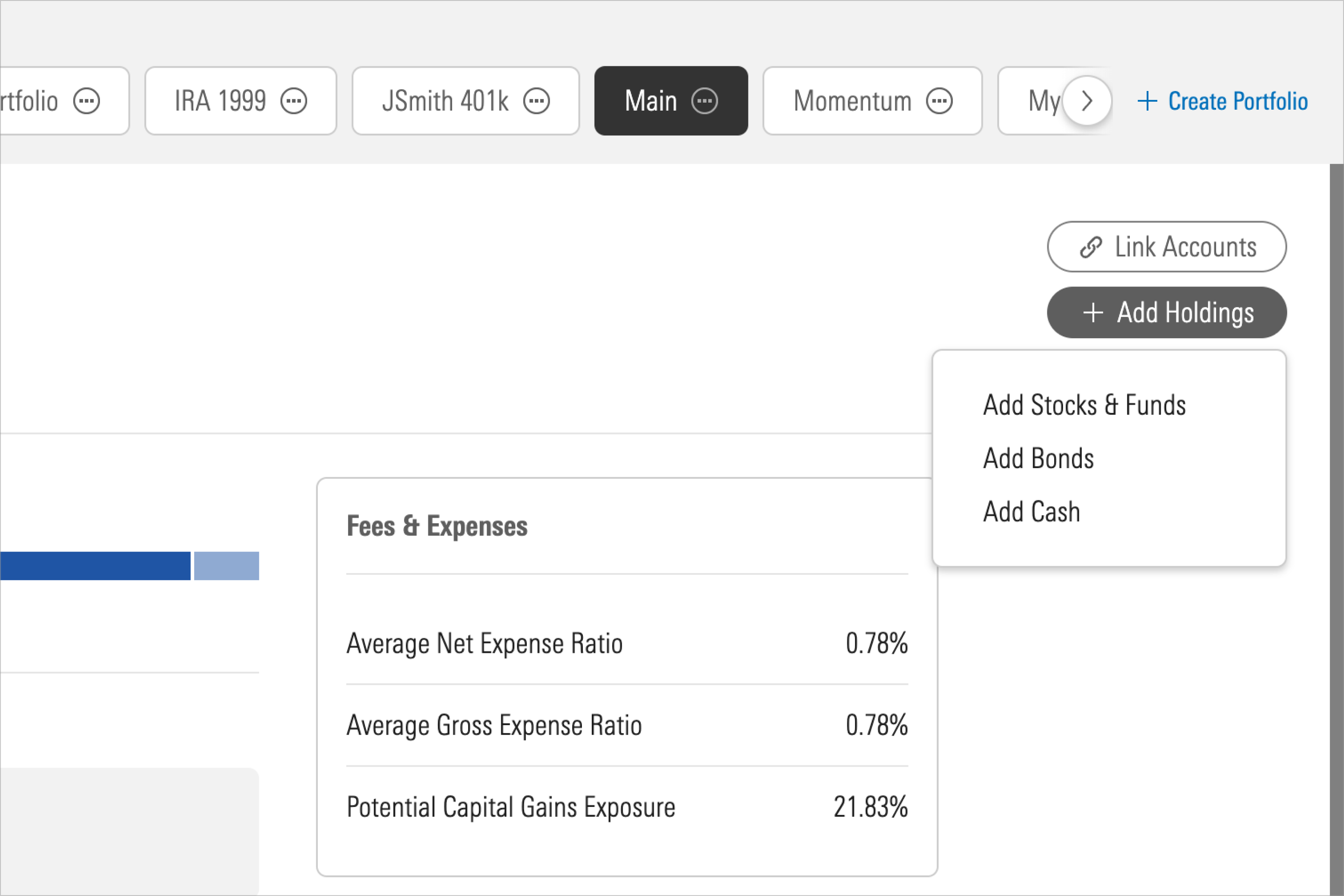
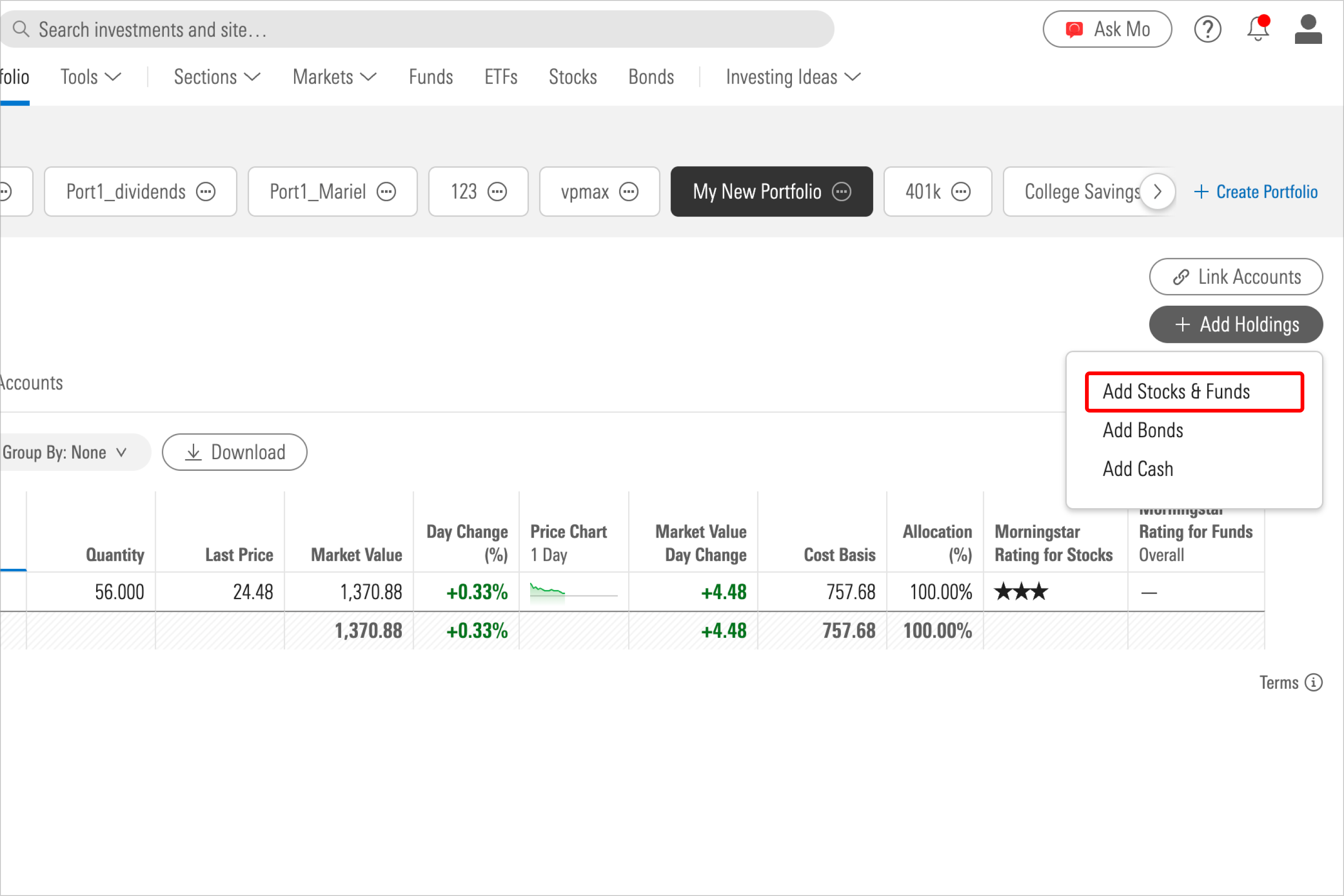
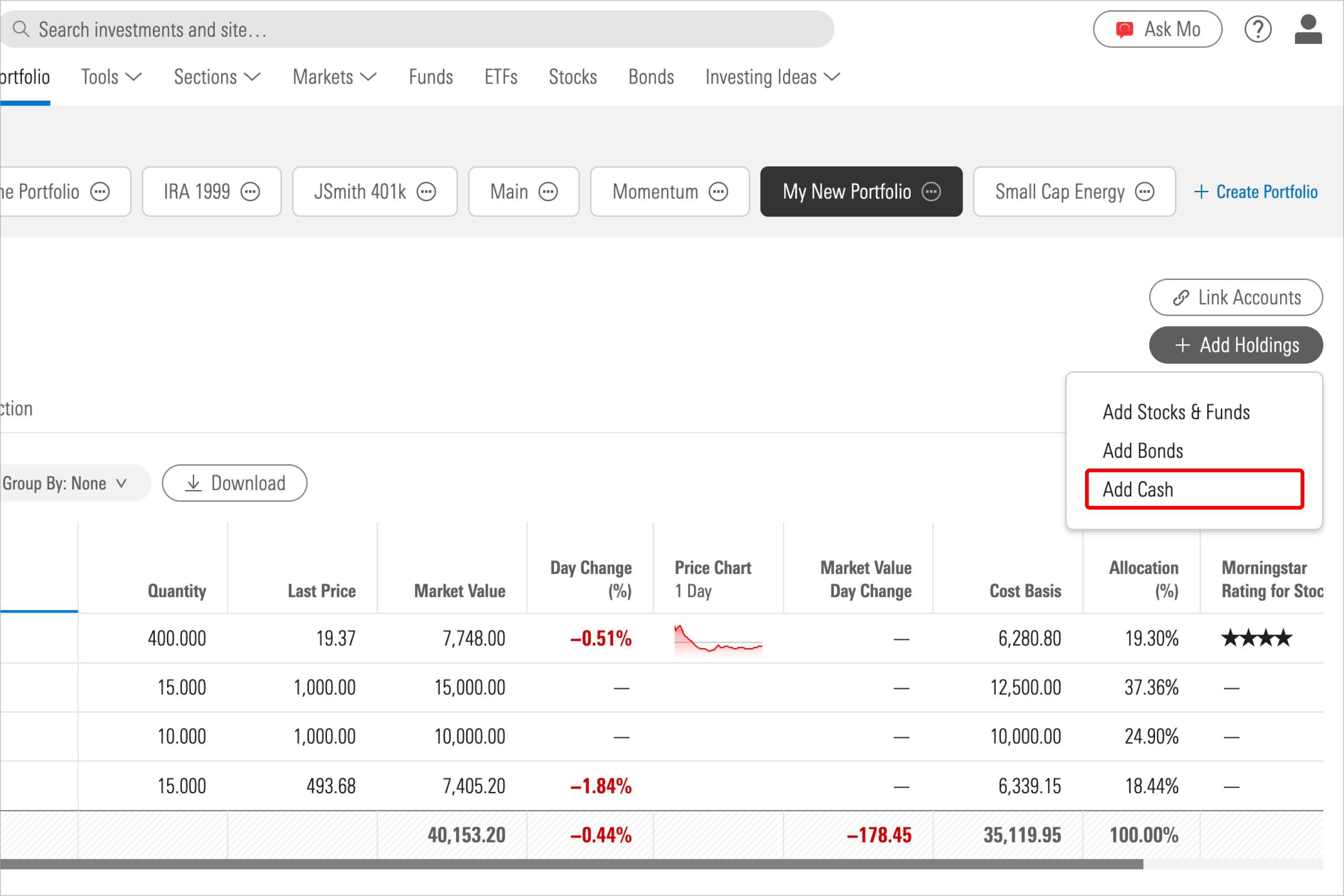
You’ll see a drop-down menu prompting you to add stocks and funds, bonds, or cash.
Add stocks to a portfolio
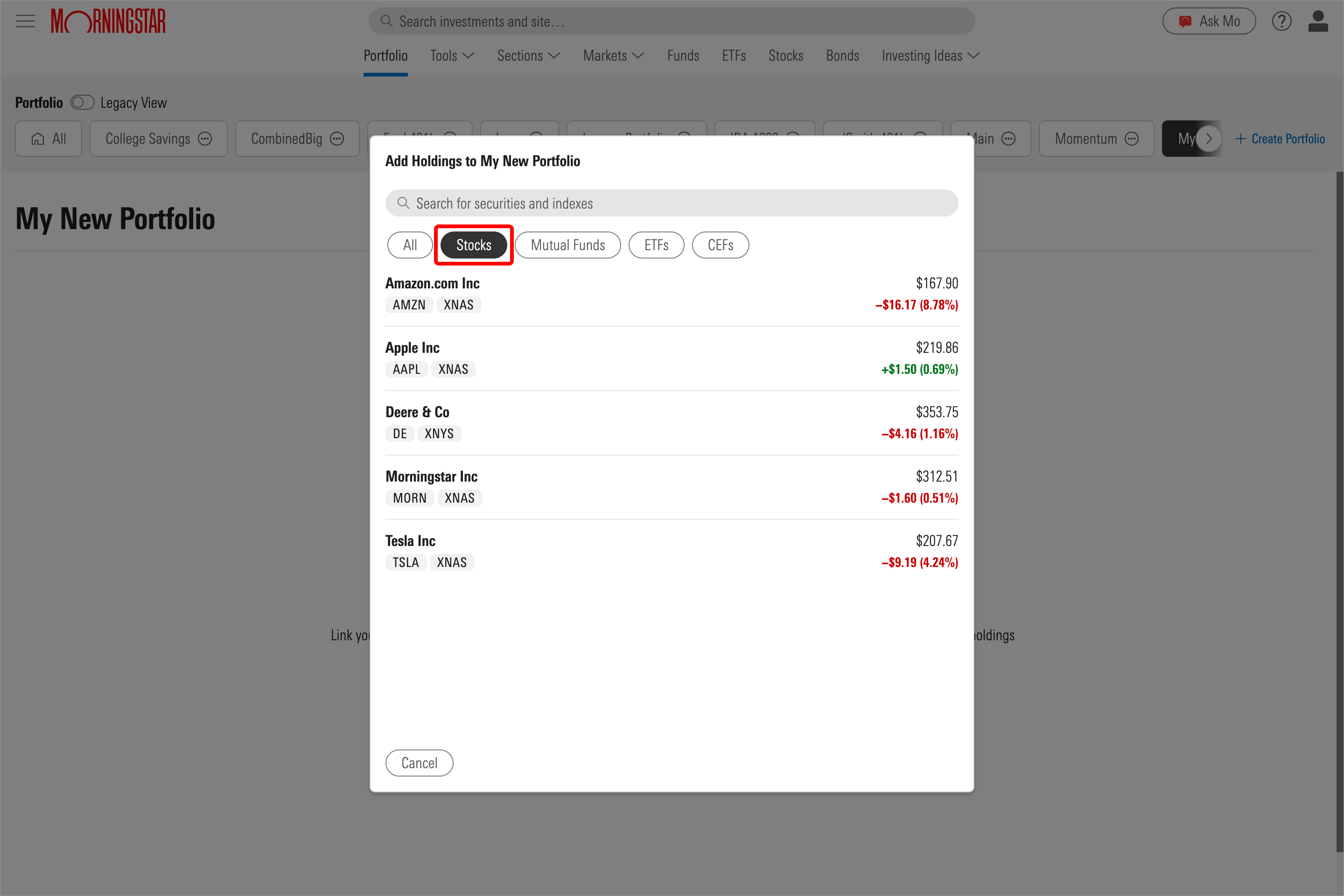
1. Select Add Stocks & Funds and choose the Stocks tab. Then use the search bar to enter the name or ticker symbol for the stock you're looking for.
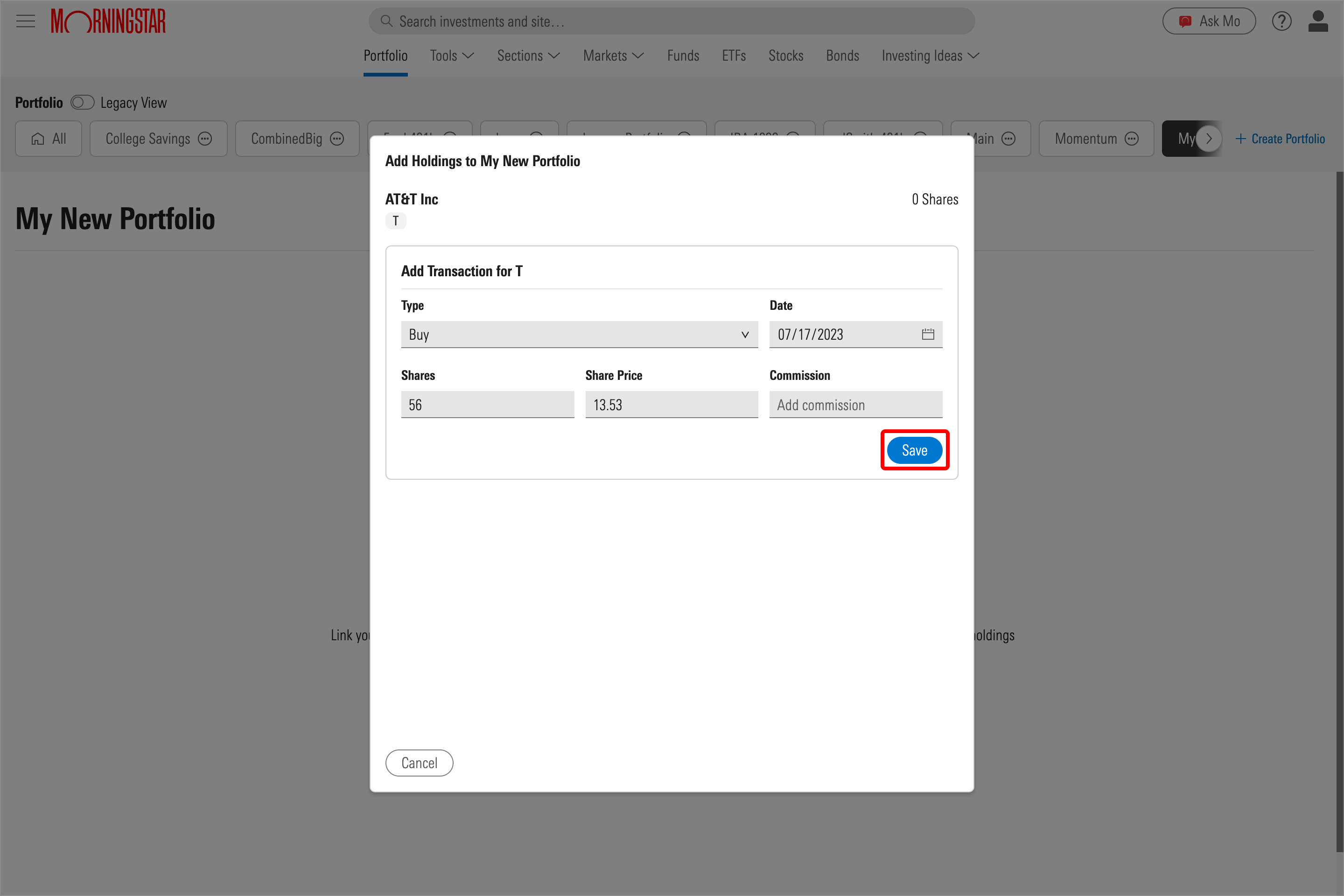
2. Enter the date of purchase, number of shares, and commission (if applicable). The share price will automatically appear when you enter the date of purchase. When you're finished, select Save.
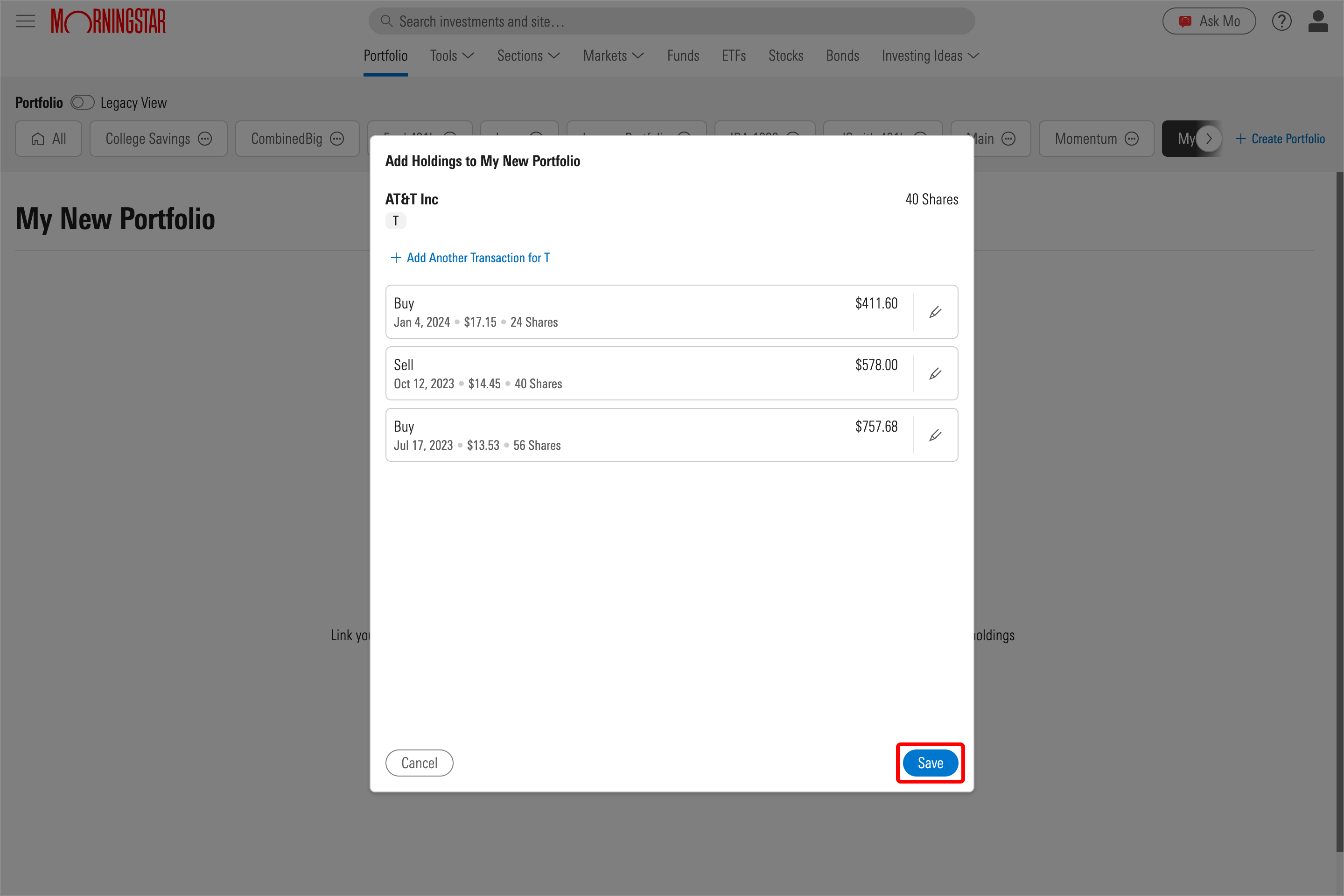
3. Add another transaction for this stock, or choose Save to add the holdings to your portfolio.
Add funds to a portfolio
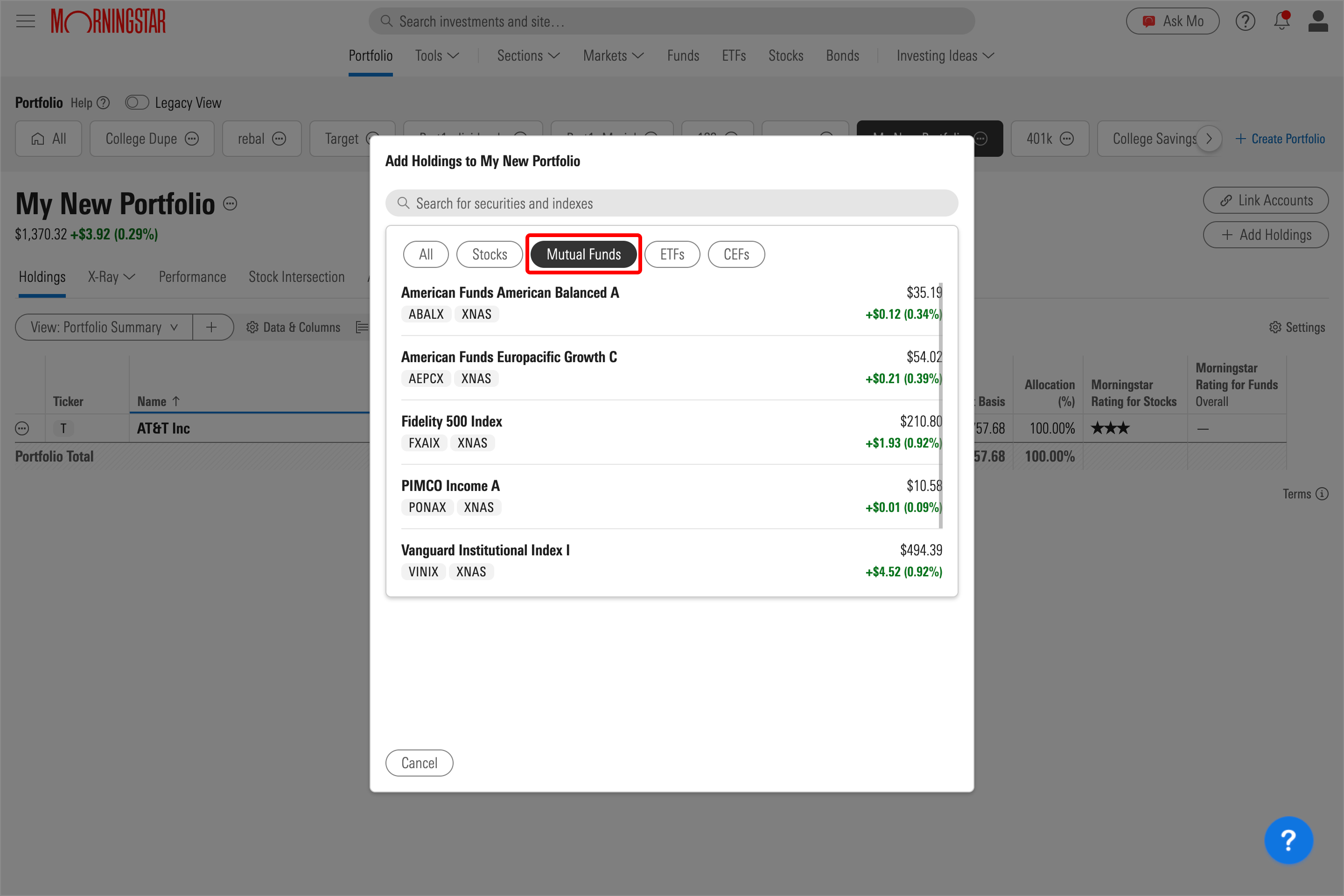
1. Select Add Stocks & Funds and choose the Funds tab. Then use the search bar to enter the name or ticker symbol for the fund you're looking for.
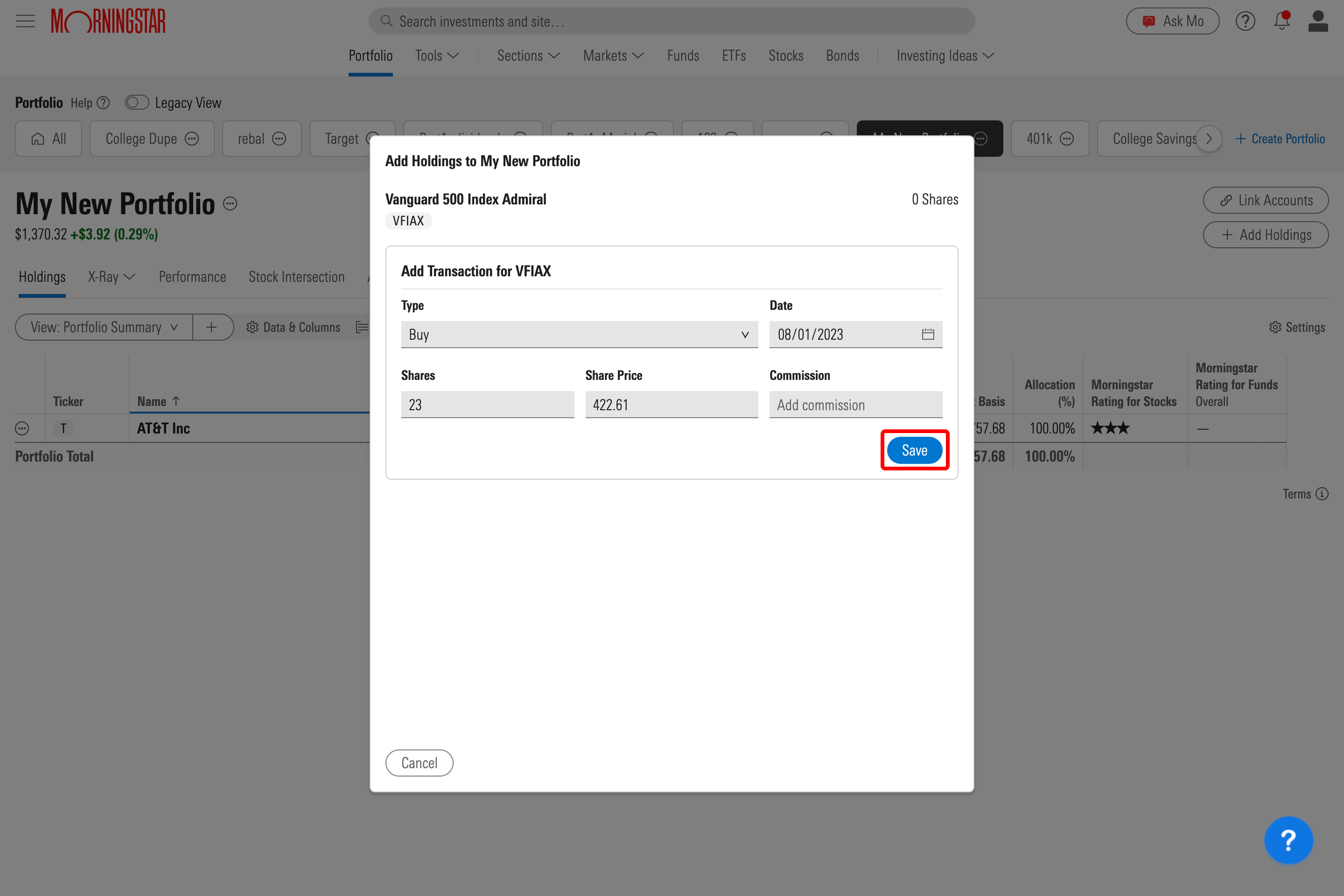
2. Enter the date of purchase, number of shares, and commission (if applicable). The share price will automatically appear when you enter the date of purchase. When you're finished, select Save.
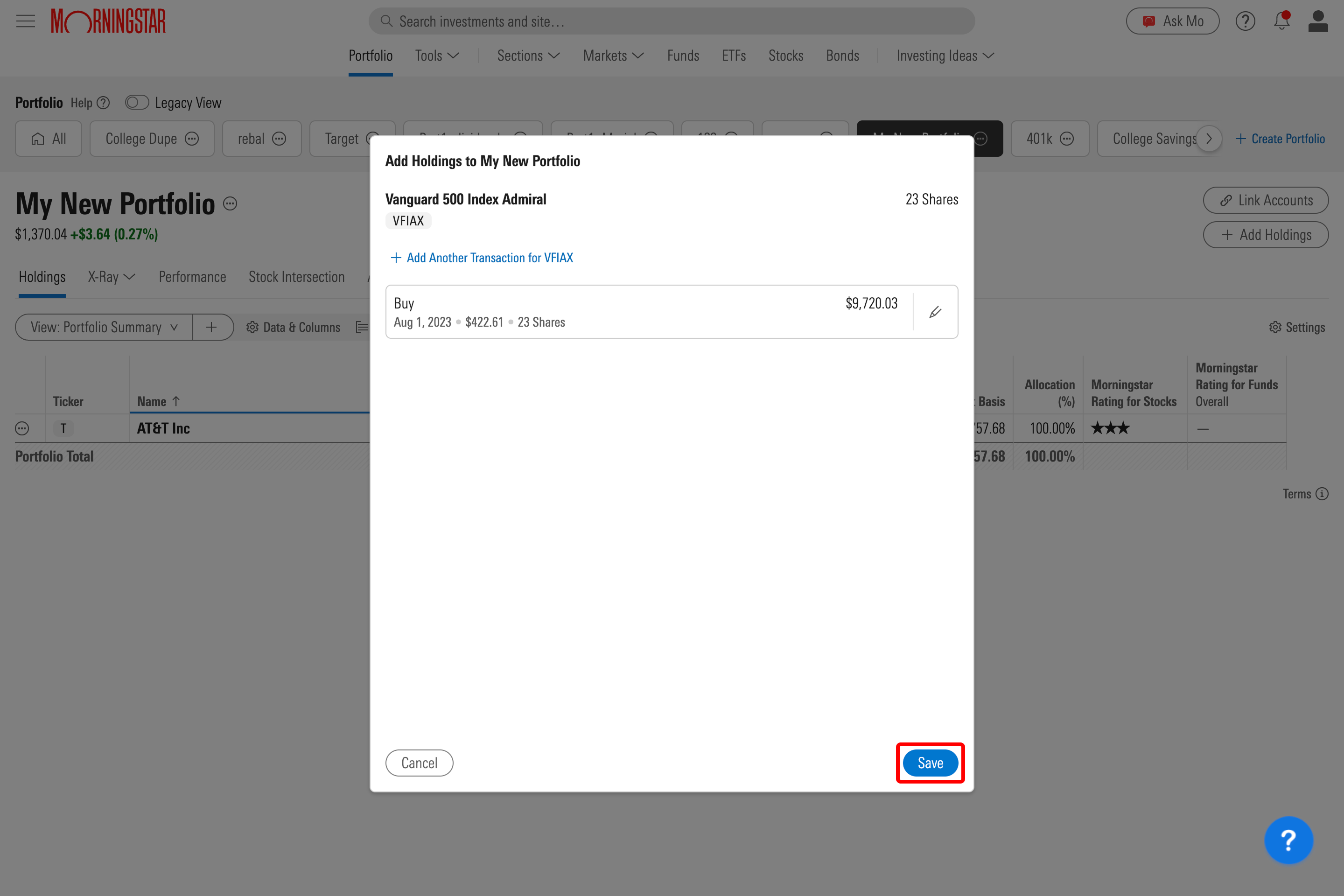
3. Add another transaction for this fund, or choose Save to add the holdings to your portfolio.
Add bonds to a portfolio
At this time, if you want bonds to show as fixed income when using X-Ray on your portfolio, we recommend you skip entering individual bonds. Instead, you'll want to use a proxy bond fund in place of individual bonds, using a 100% fixed income fund such as IEF. First, calculate the total monetary value of the individual bonds you hold, divide it by the current per-share price of the bond fund, and you'll have the number of shares you need to enter.
Add cash or money market accounts to a portfolio
At this time, if you want to enter a money market to show up as cash while using X-Ray on your portfolio, you'll want to either enter your money market balance as cash or use a proxy money market fund. SWVXX is a Schwab money market fund that works well as cash.
1. Select Add Cash, then give your cash holding a name before adding a total and date of deposit.
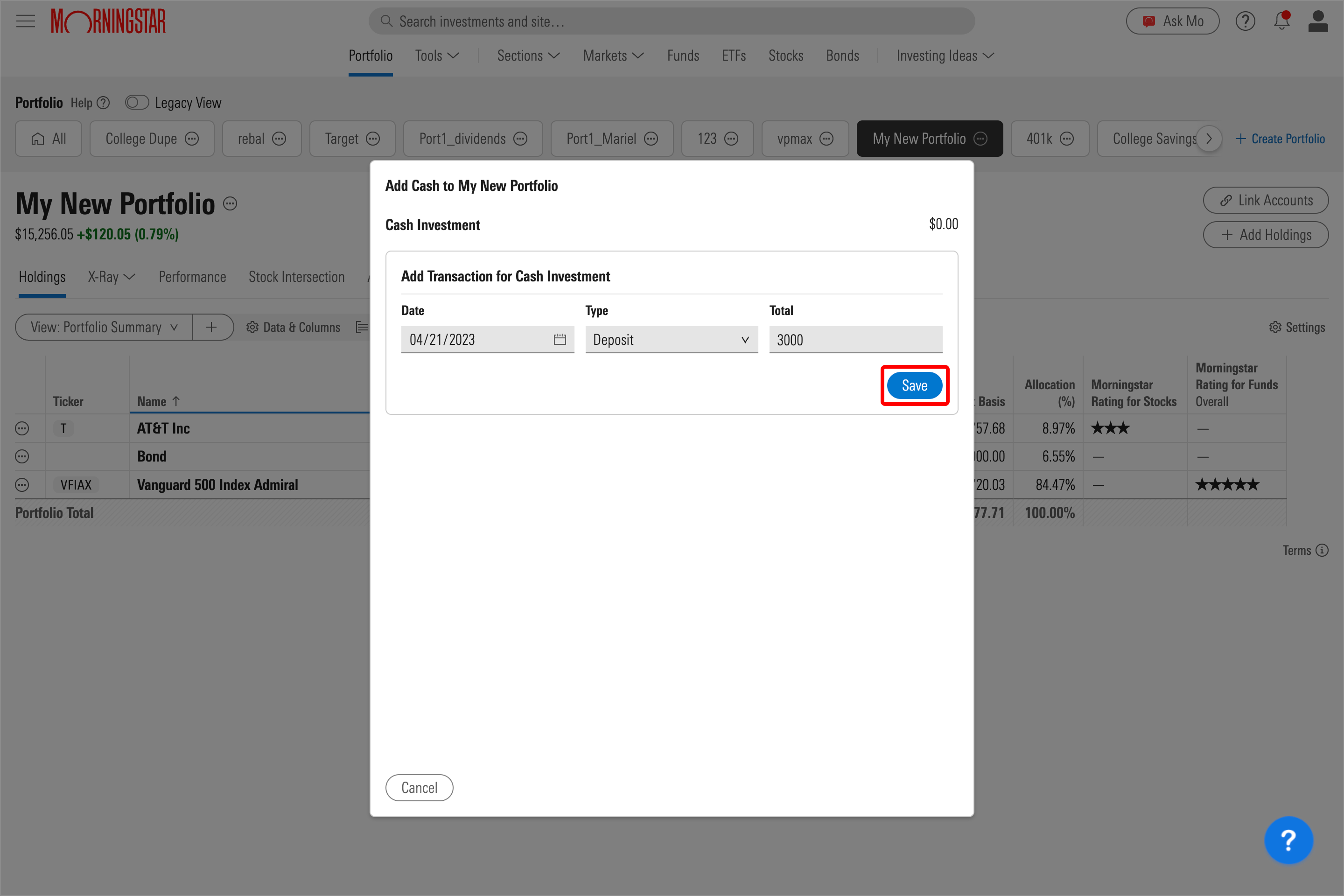
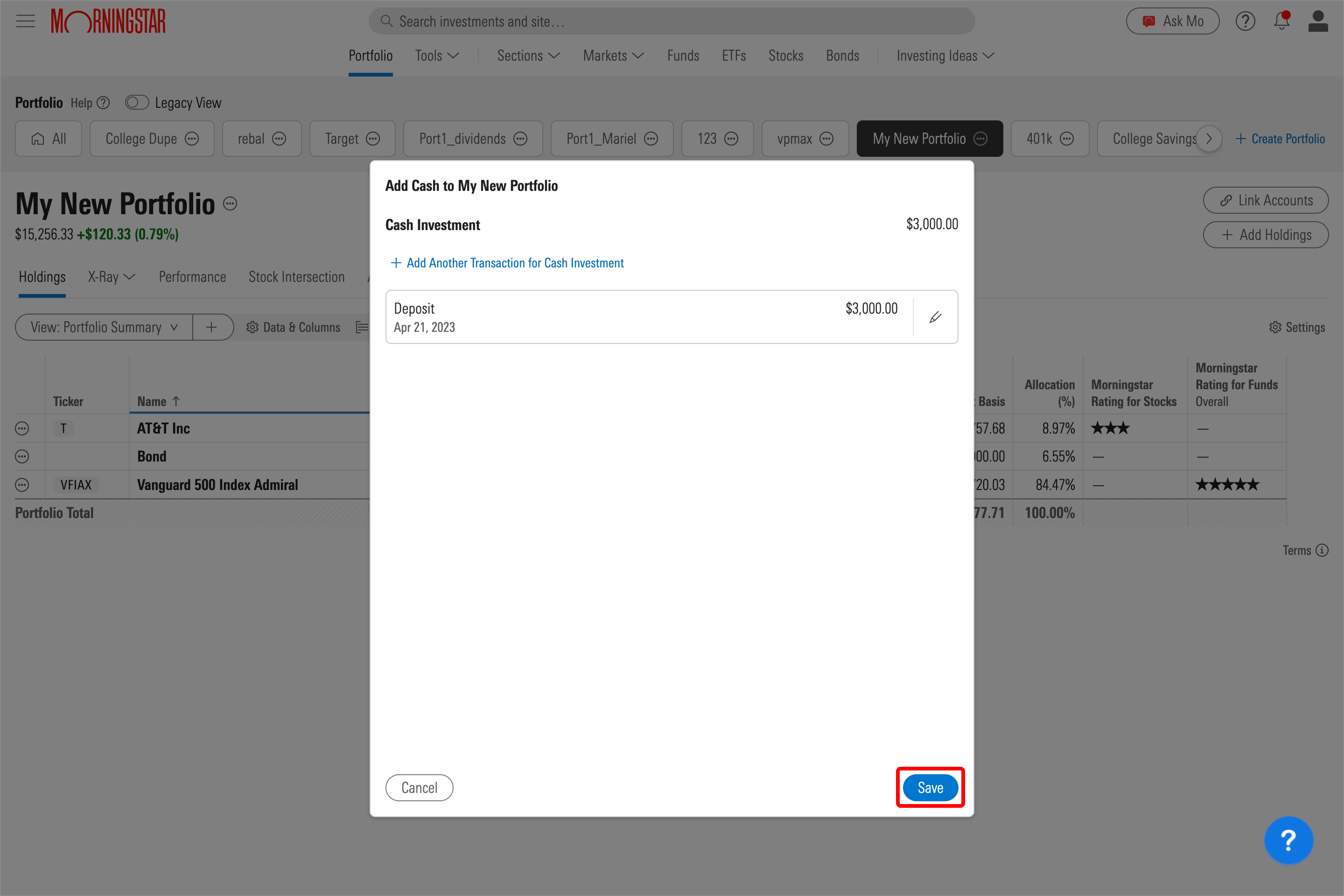
2. Add another cash transaction, or choose Save to add the holdings to your portfolio.
Delete holdings from a portfolio
To remove holdings from your portfolio:
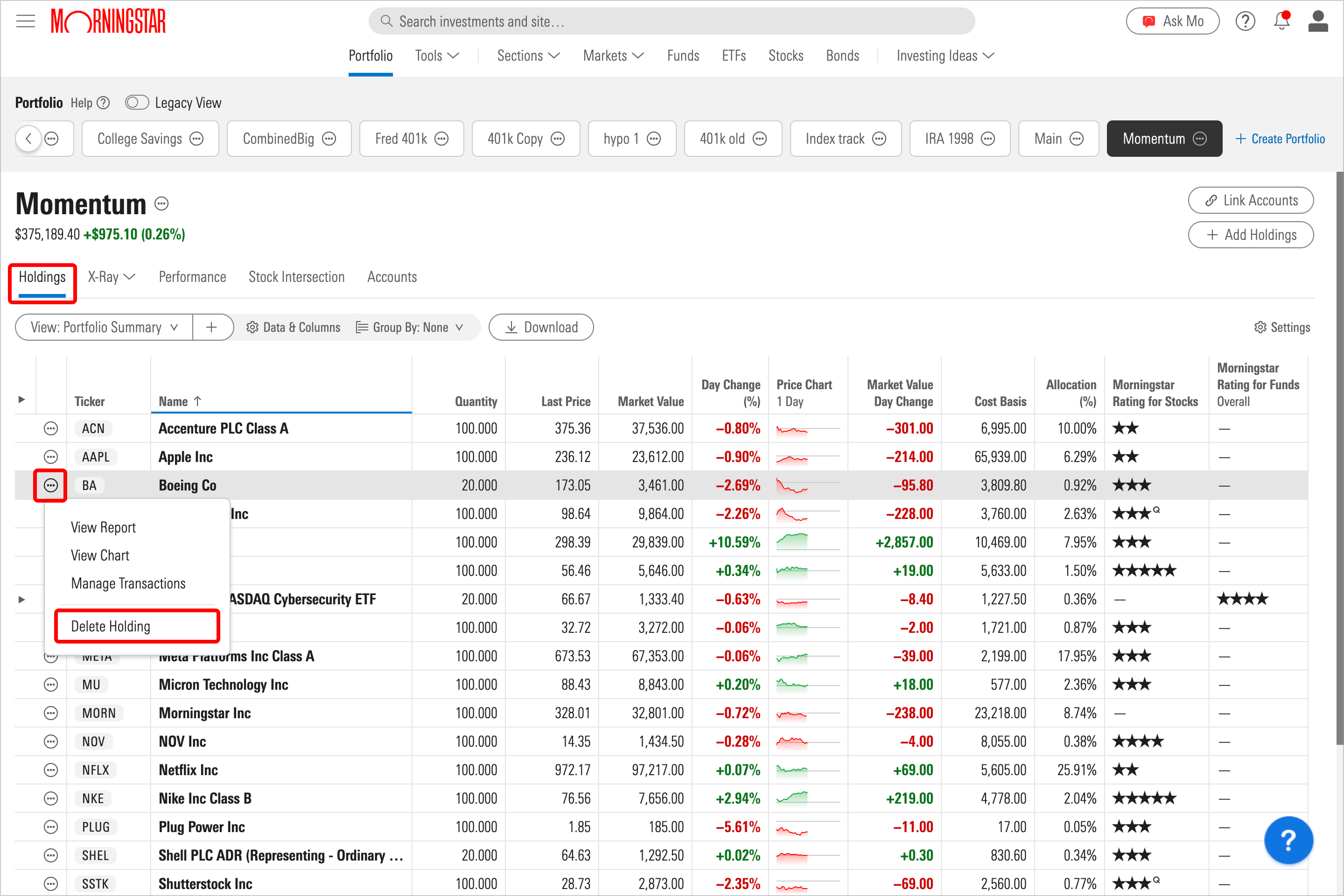
1. Navigate to the Holdings tab, then select the Manage Holding icon. Choose Delete Holding at the bottom of the drop-down menu.
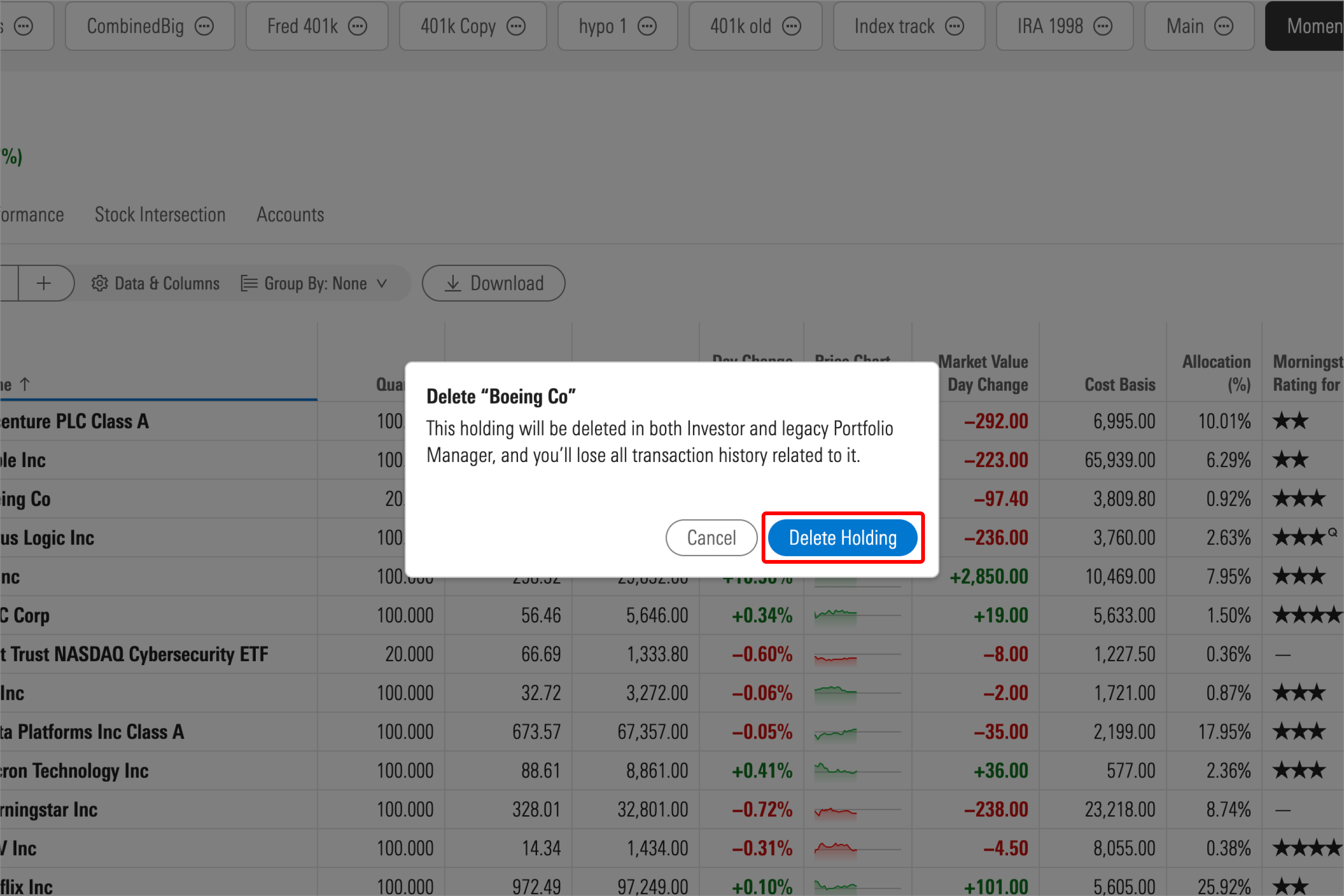
2. Confirm the holding’s removal by clicking Delete Holding.

 United States