
Compare securities
Learn how to compare up to five investments side by side to support quick, early-stage evaluation.
The Compare tool allows users to compare up to five investments side by side to support quick, early-stage evaluation, using a fixed set of standardized data points and ratings.
It is distinct from Screener, which is built for exploration, filtering, and custom data views. It’s also distinct from Watchlists, which are oriented toward monitoring potential investments.
To compare two to five securities, start by launching the Compare tool in one of three ways:
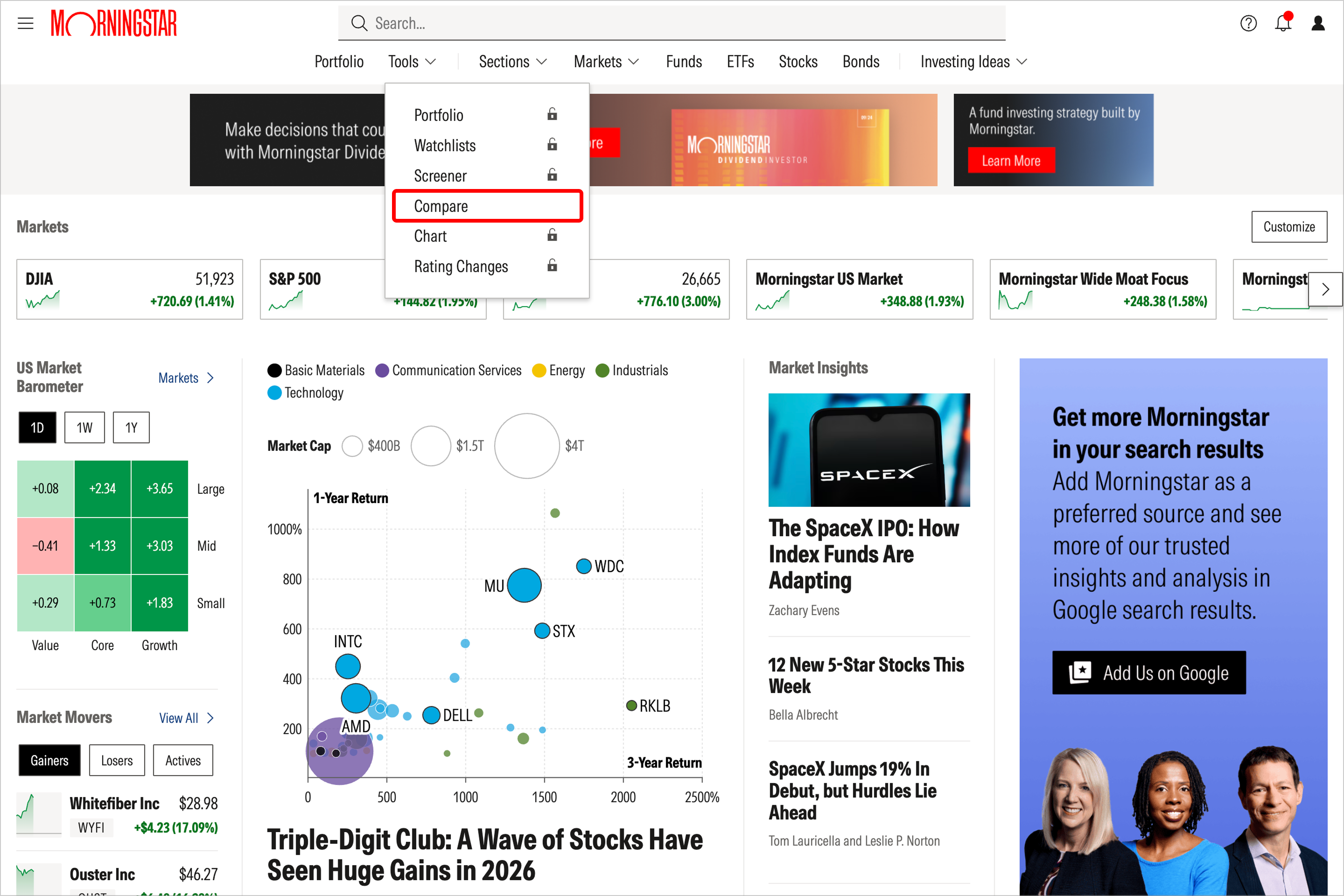
Select Compare in the top navigation or from the left-hand navigation under Tools.
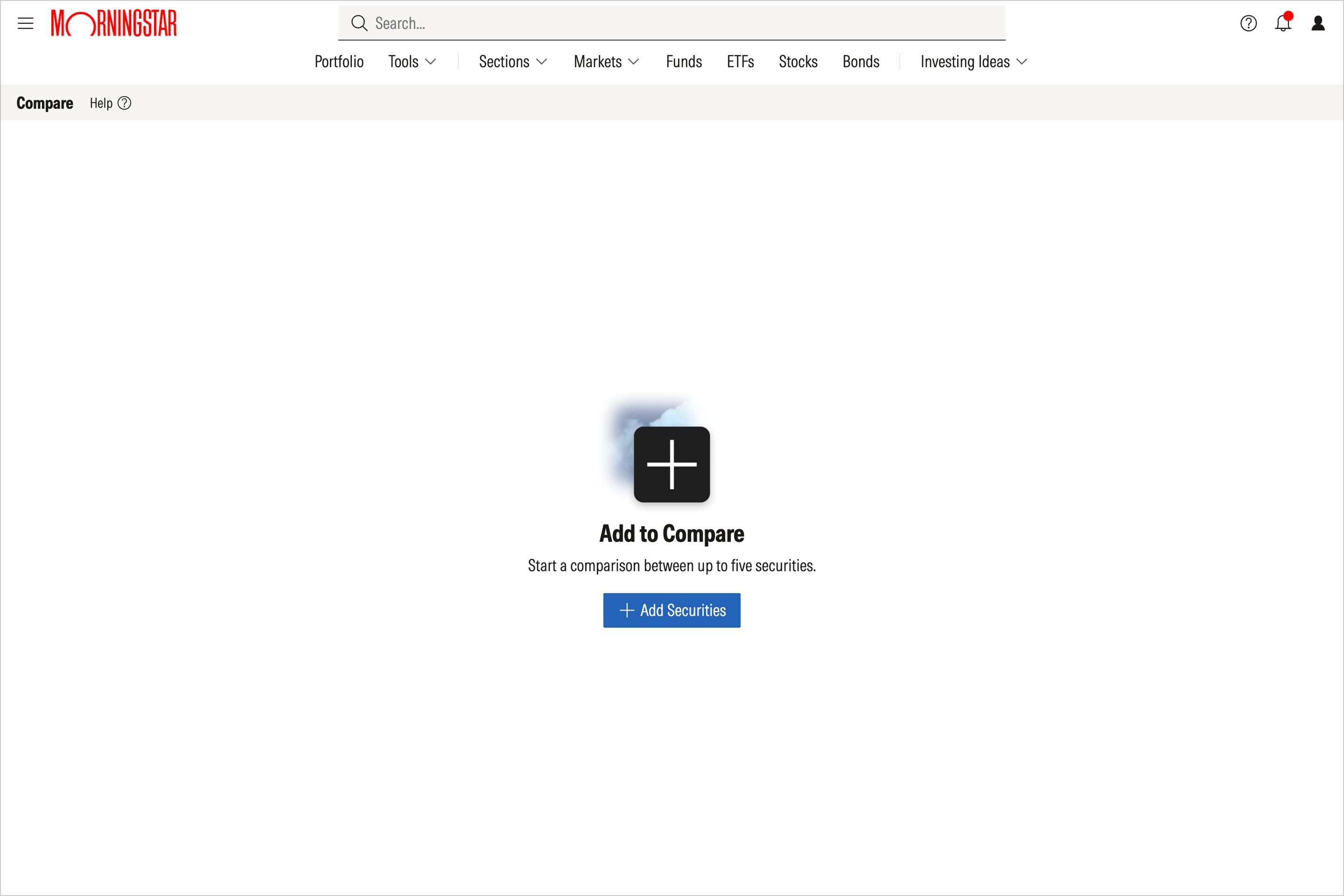
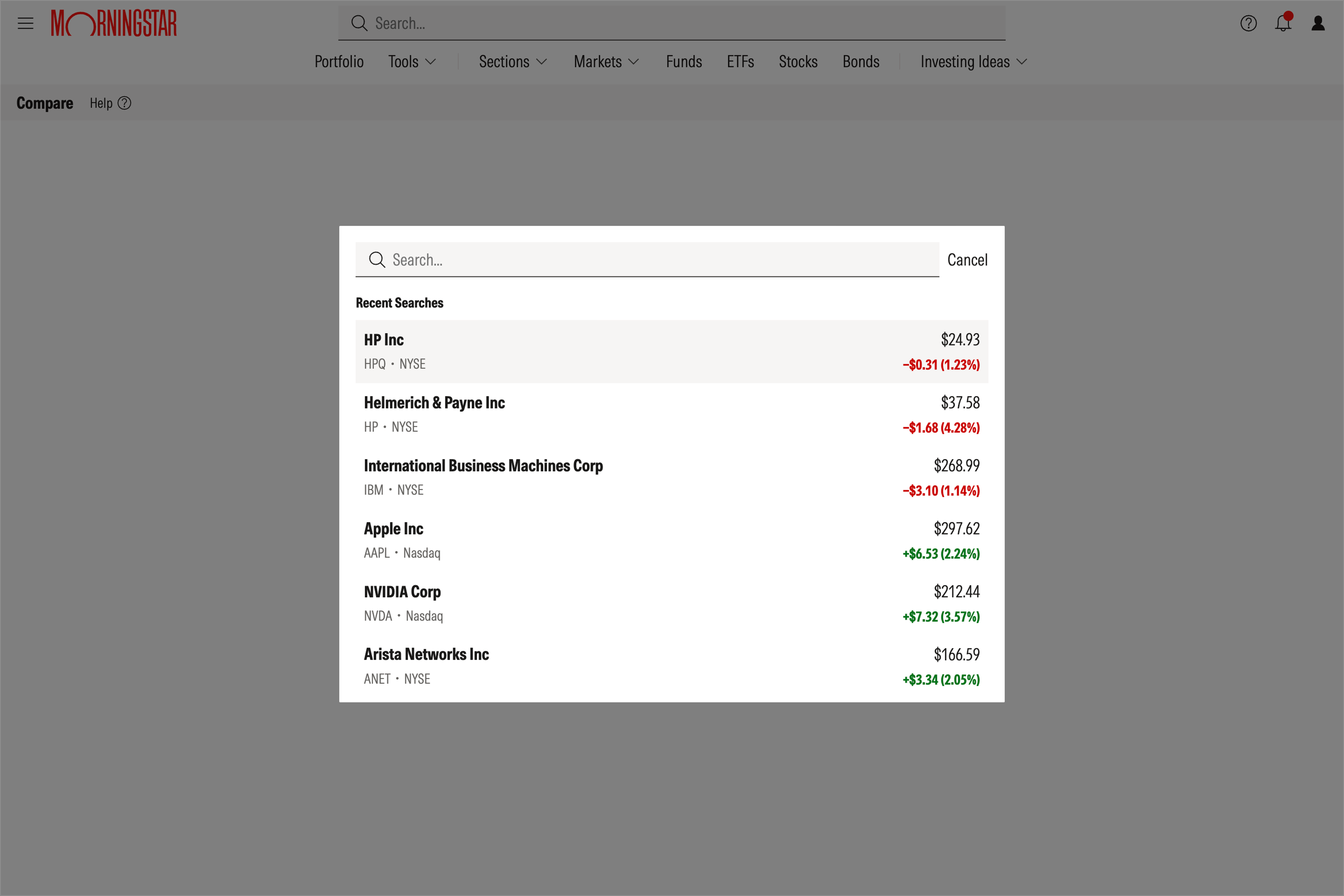
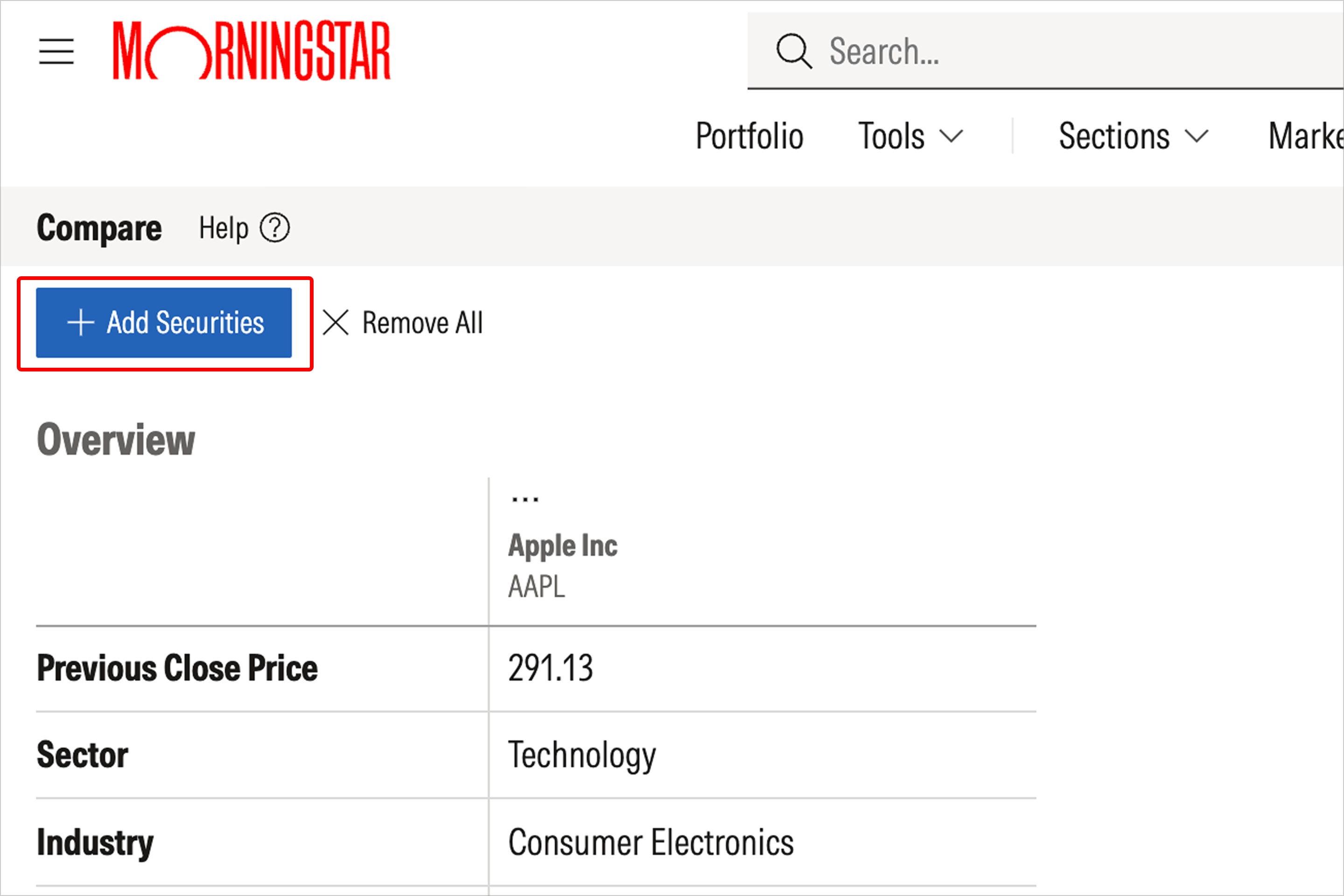
Then click Add Securities and search within the pop-up window to find the security you’re looking for.
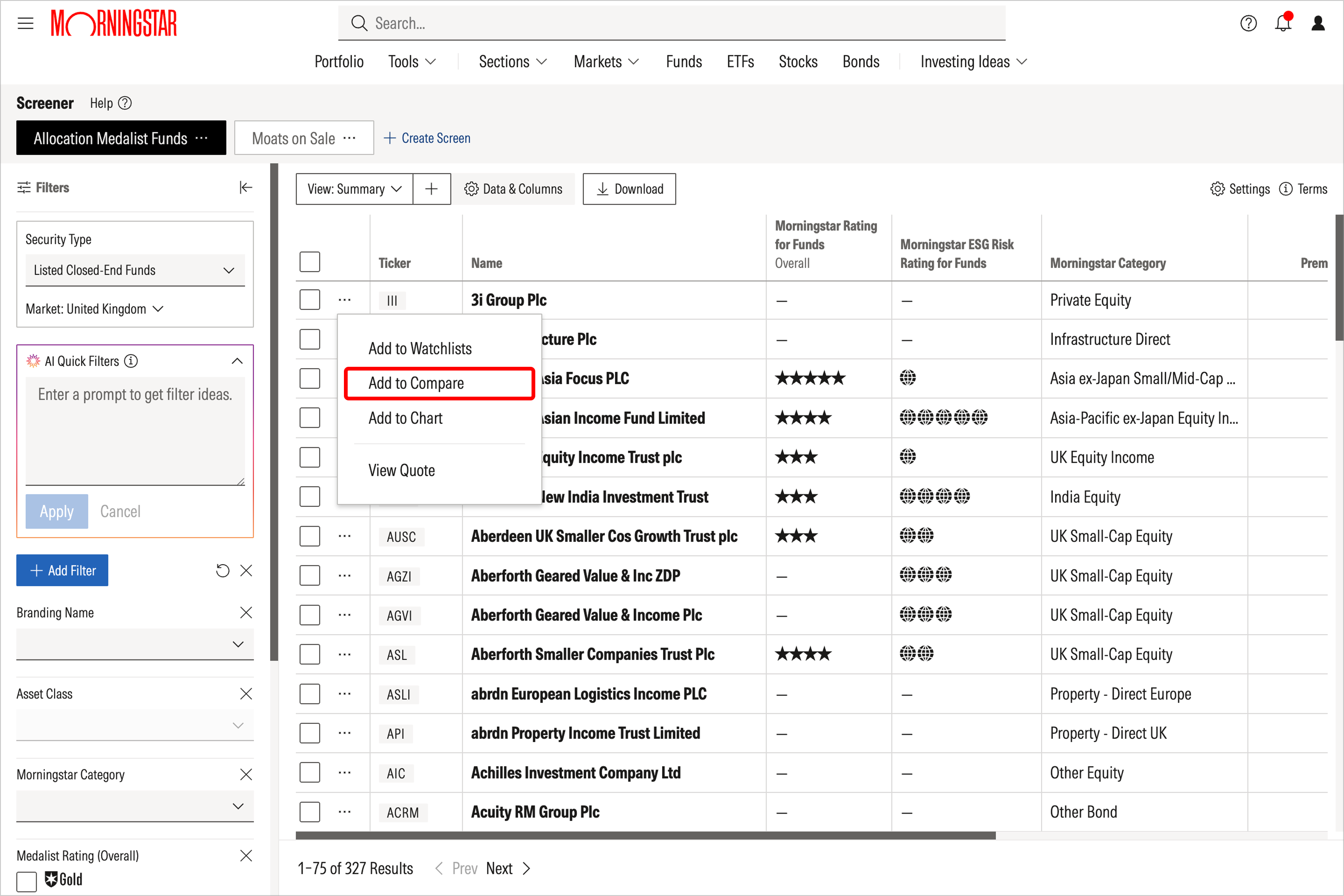
You can also click on Actions icons across the site, then select Add to Compare from the menu to add that security to a new comparison.
Alternatively, you can select More Actions on quote pages, then choose Add to Compare from the menu to add that security to a new comparison.
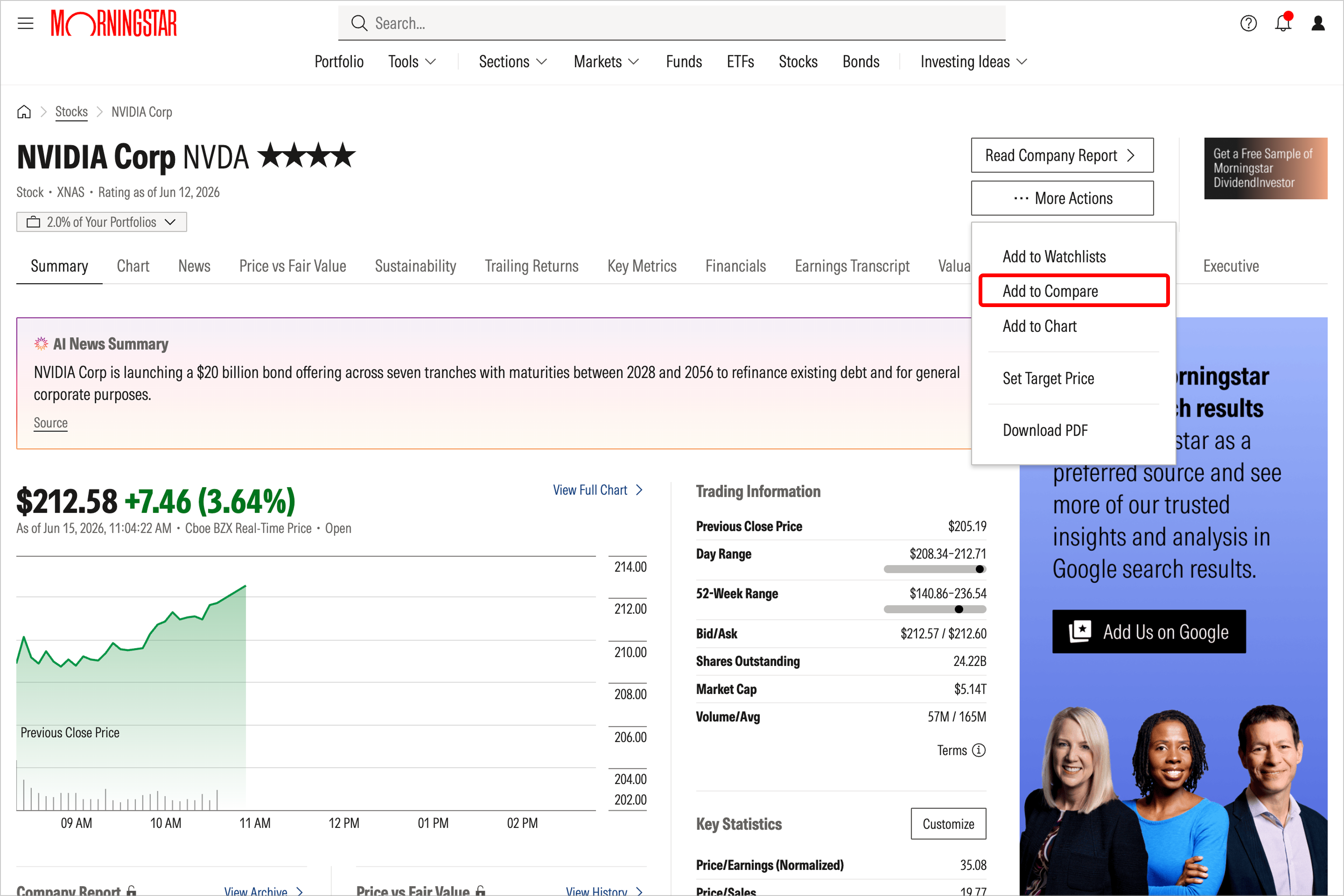
Next, add additional securities of the same asset class type so you can view them side by side:
Select Add Securities and search within the pop-up window to find the security you’re looking for. You can add the securities one at a time, to compare a maximum of five securities.
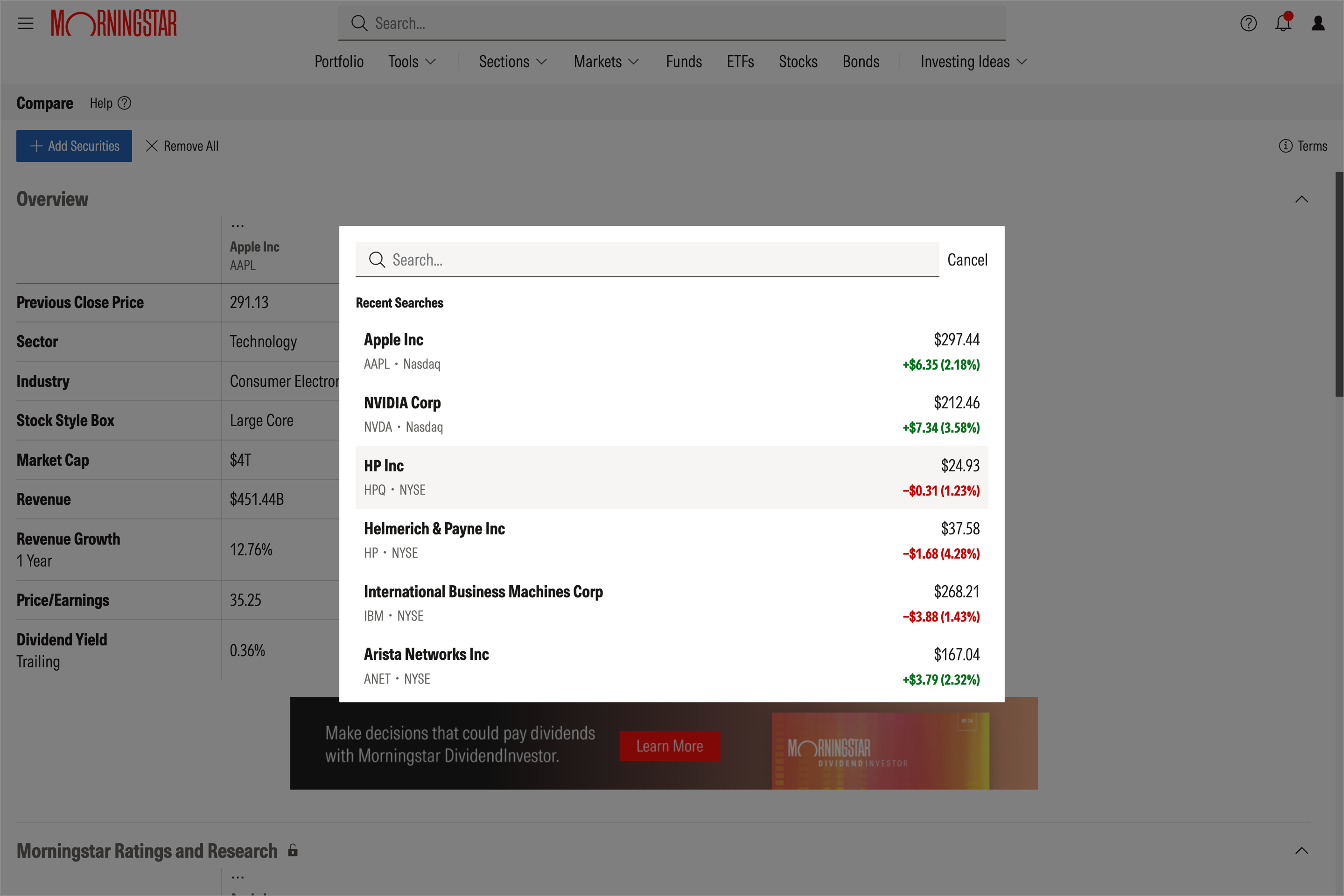
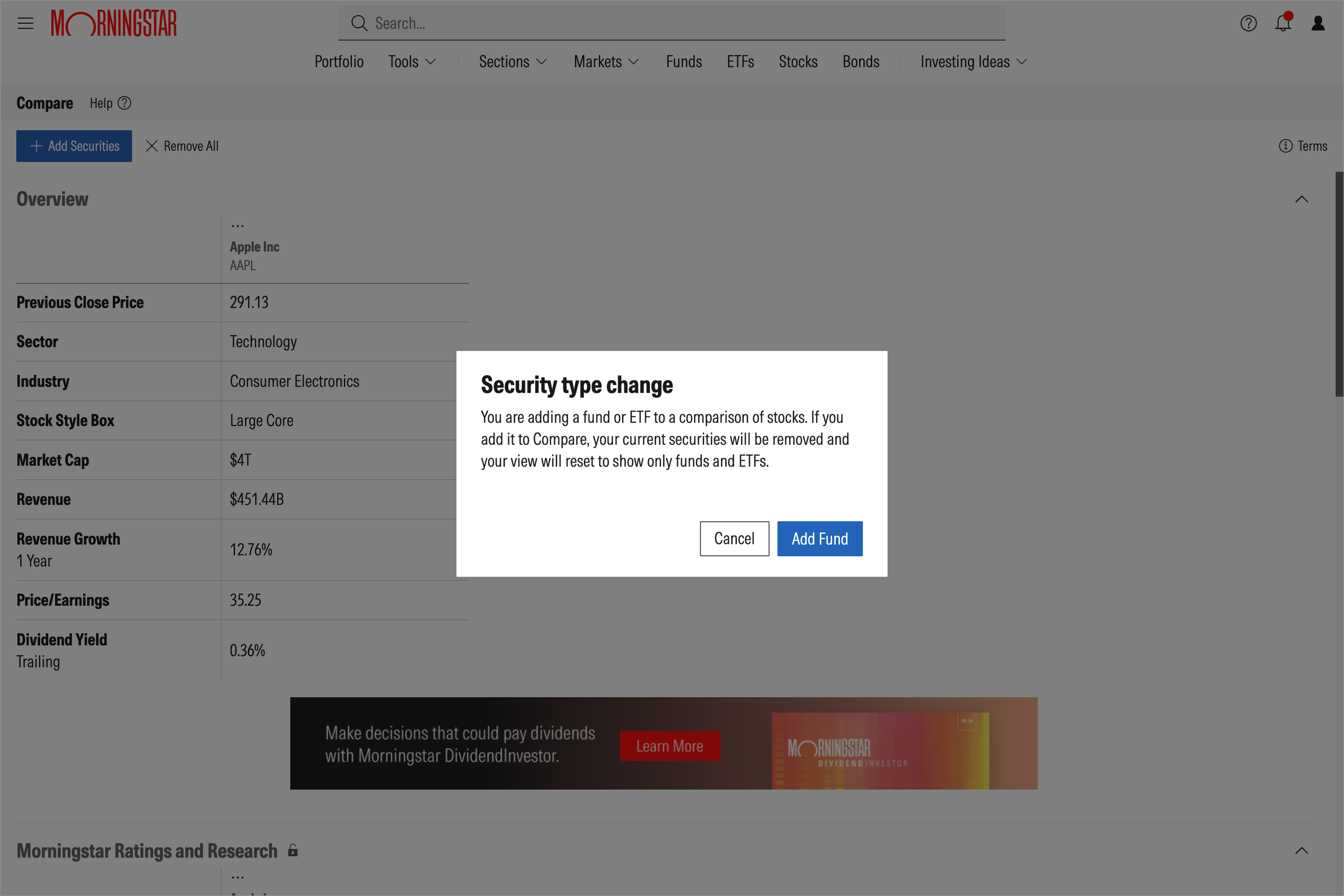
Stocks can be compared to stocks, and mutual funds and/or ETFs can be compared with mutual funds and/or ETFs. Stocks cannot be compared with mutual funds and/or ETFs, however.
To remove a single security from Compare, select the Actions icon above the security name and choose Remove from Compare.
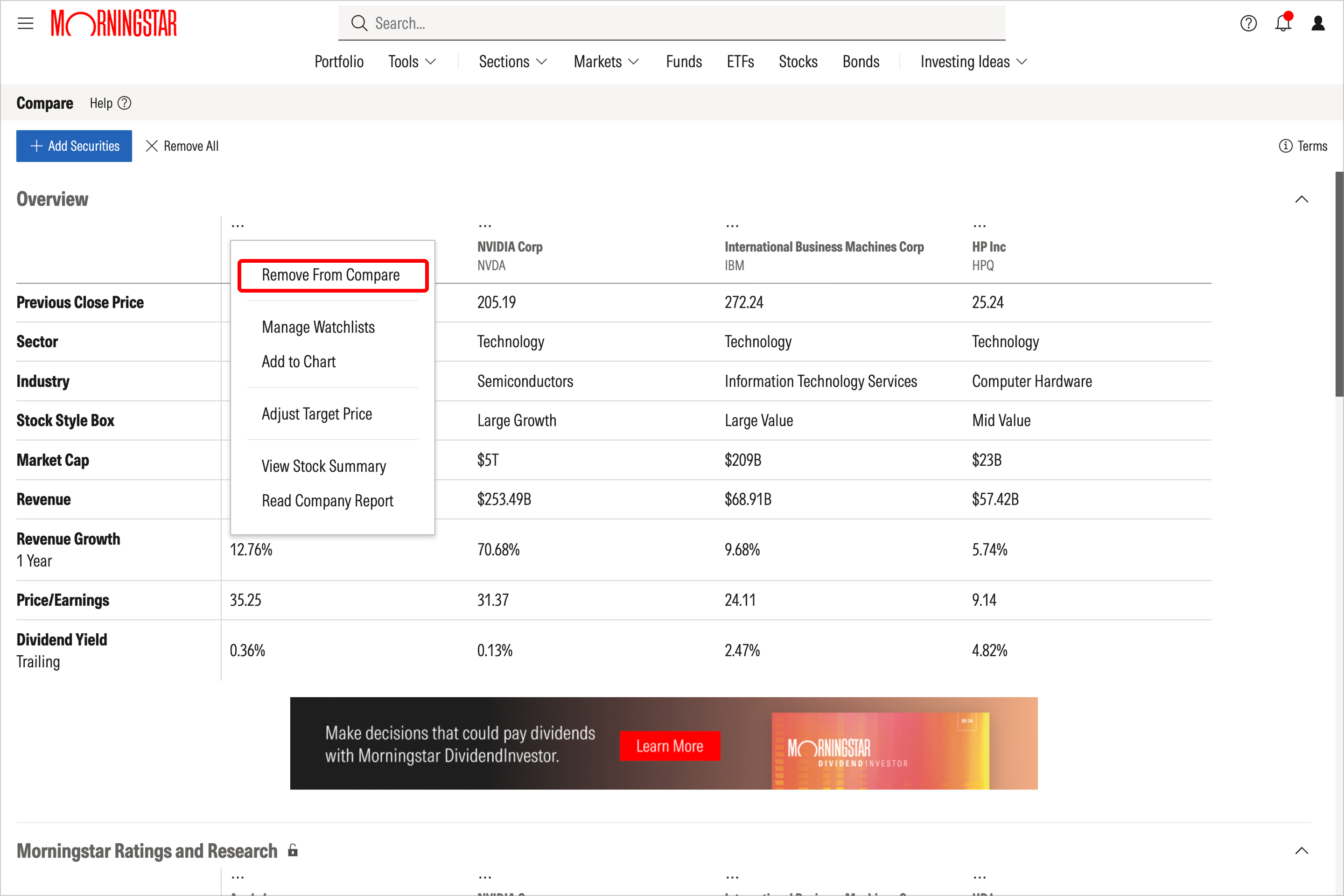
You can also clear all securities currently in your comparison by selecting Remove All to the right of the Add Securities button.
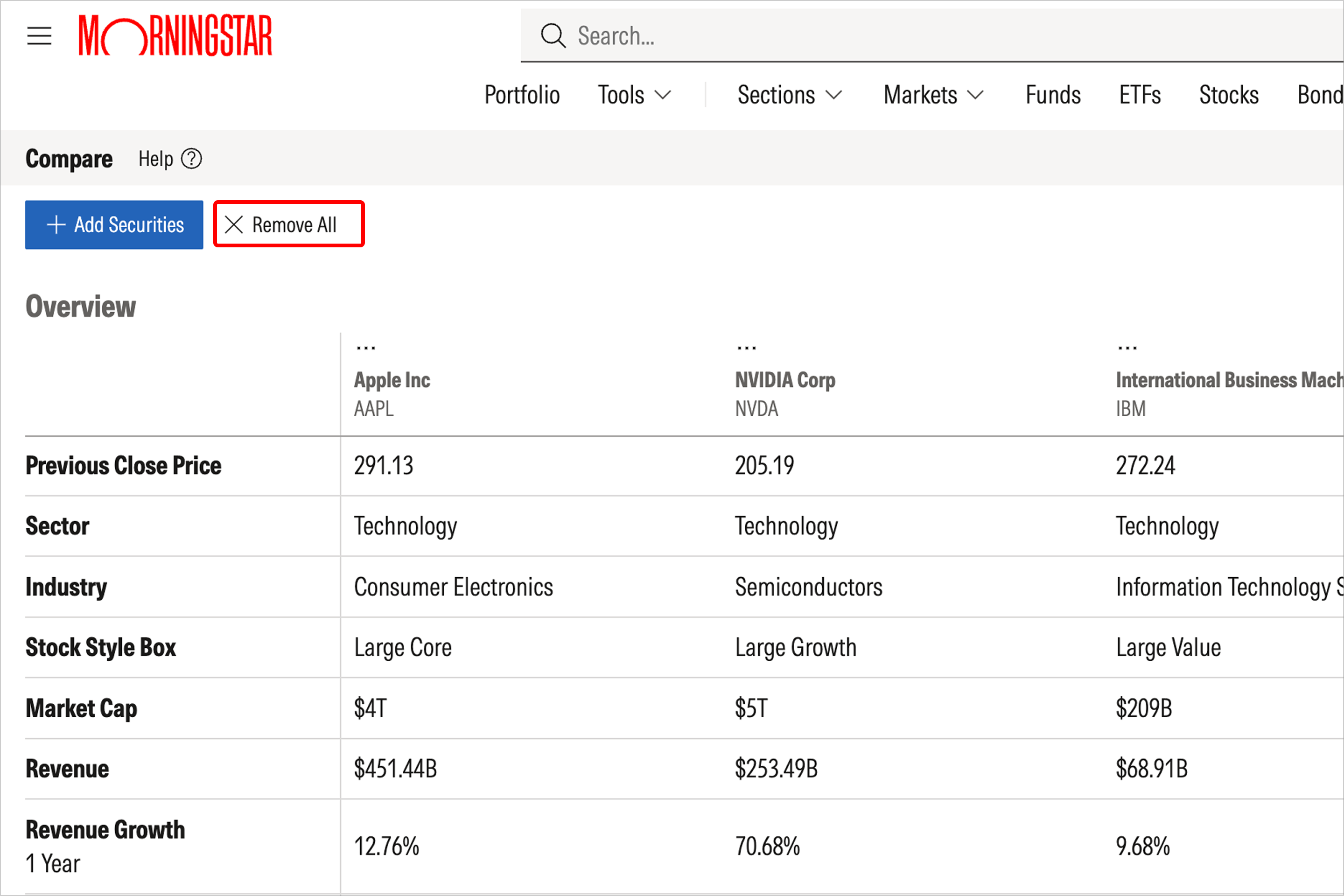
Important note: Comparisons cannot be saved. If you navigate away from the tool by closing your tab or window, the comparison will be deleted.
If you want to keep track of a security within your active comparison set, select the Actions button, where you can choose Add to Screener or Add to Watchlist.

 United States