
How to Use AI Quick Filters
Learn how to use AI Quick Filters to search for securities that meet your desired criteria.
AI Quick Filters can help you kick-start your search in Screener by automatically applying data points that align with what you’re looking for.
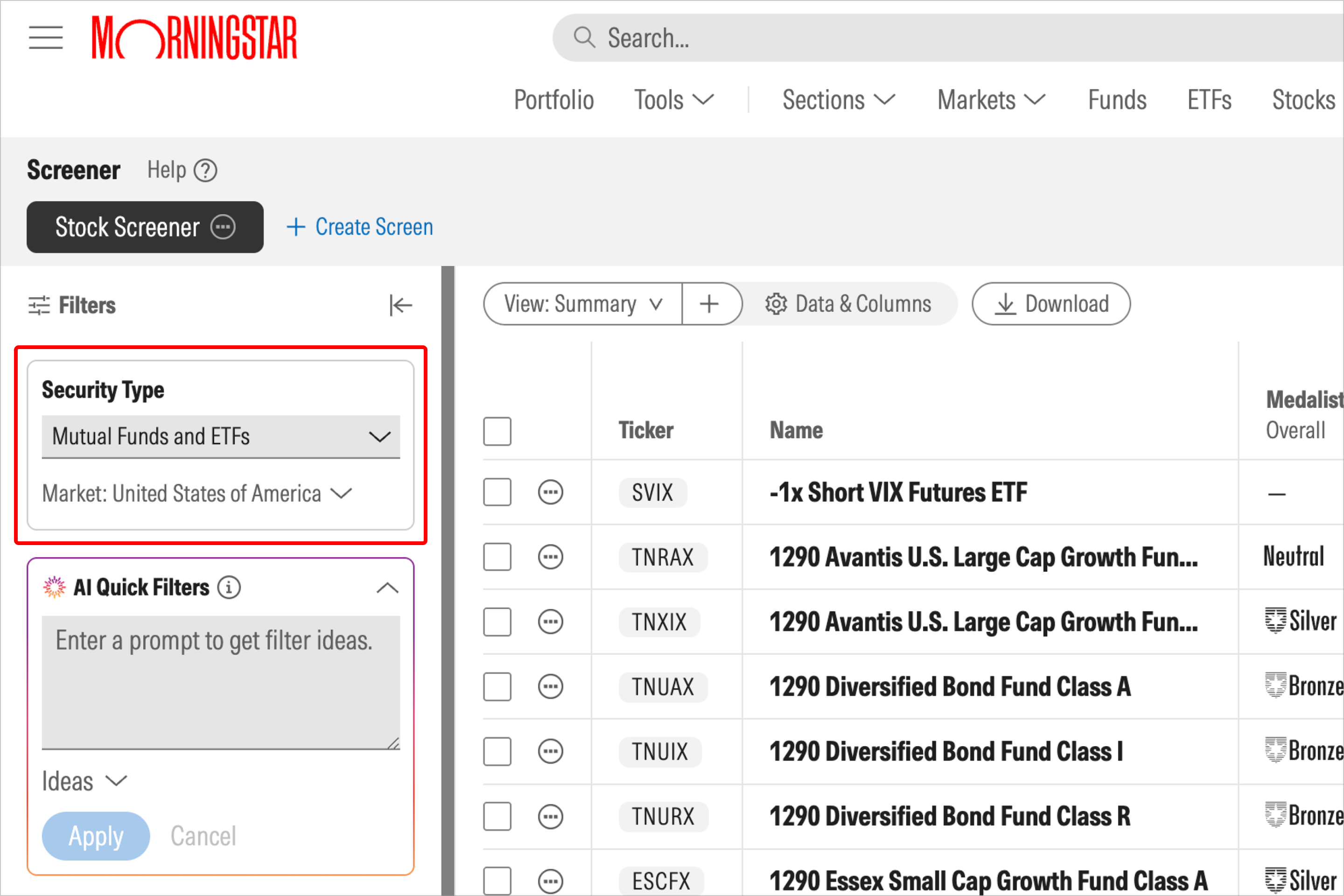
1. [Optional] Select an investment type.
To get started, you can select an investment type (such as stocks or ETFs) from the Investment Type drop-down menu. Alternatively, if you choose to include the asset type in your prompt (see step 2), you can skip this step.
2. Enter a prompt into AI Quick Filters
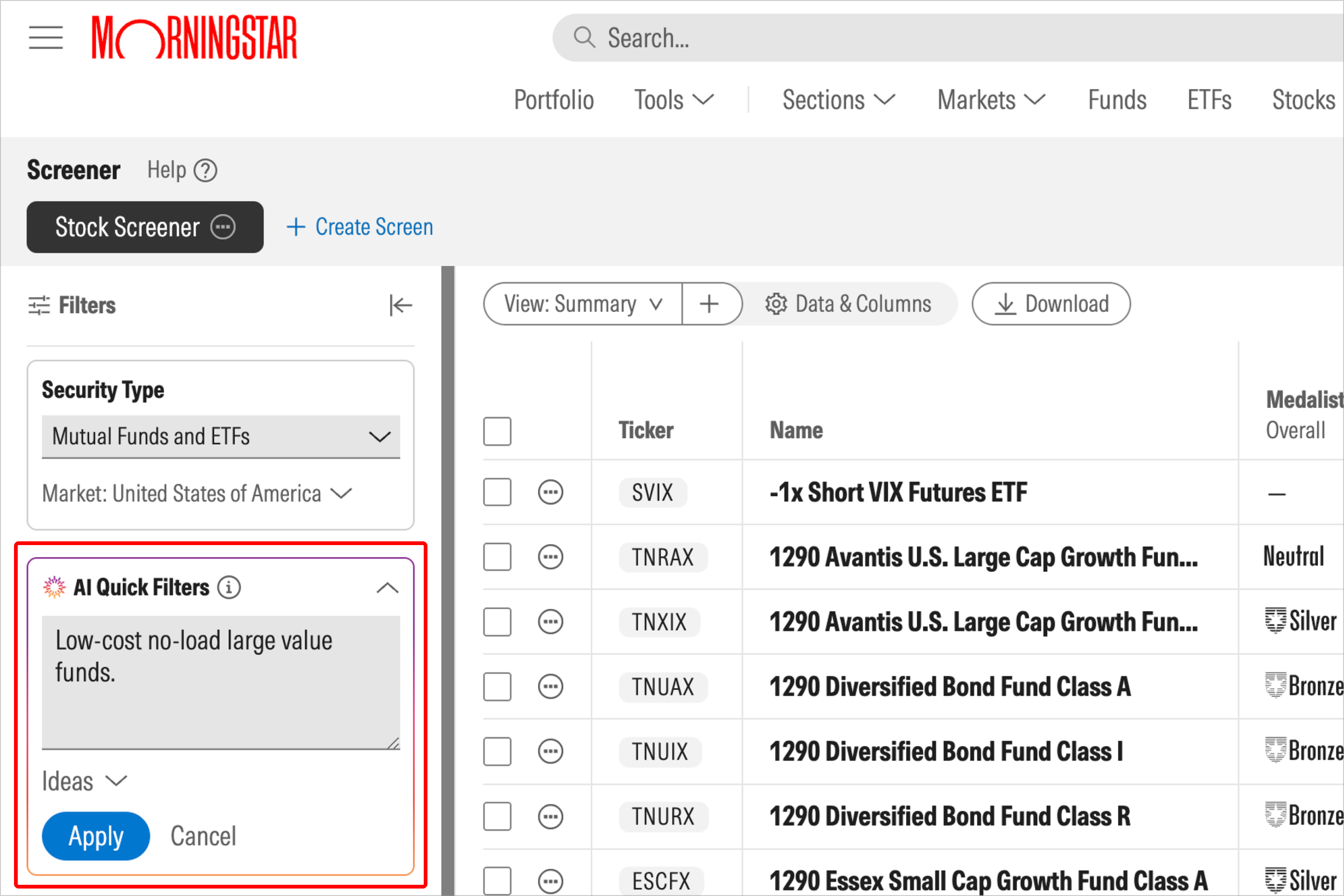
Using the AI Quick Filters feature, enter your prompt, such as “Low-cost no-load large value funds” or “Five star stocks with a dividend yield above 3%.” You can also expand the Ideas drop-down to choose from one of the sample prompts. Click Select Apply when you’re finished writing or choosing your prompt.
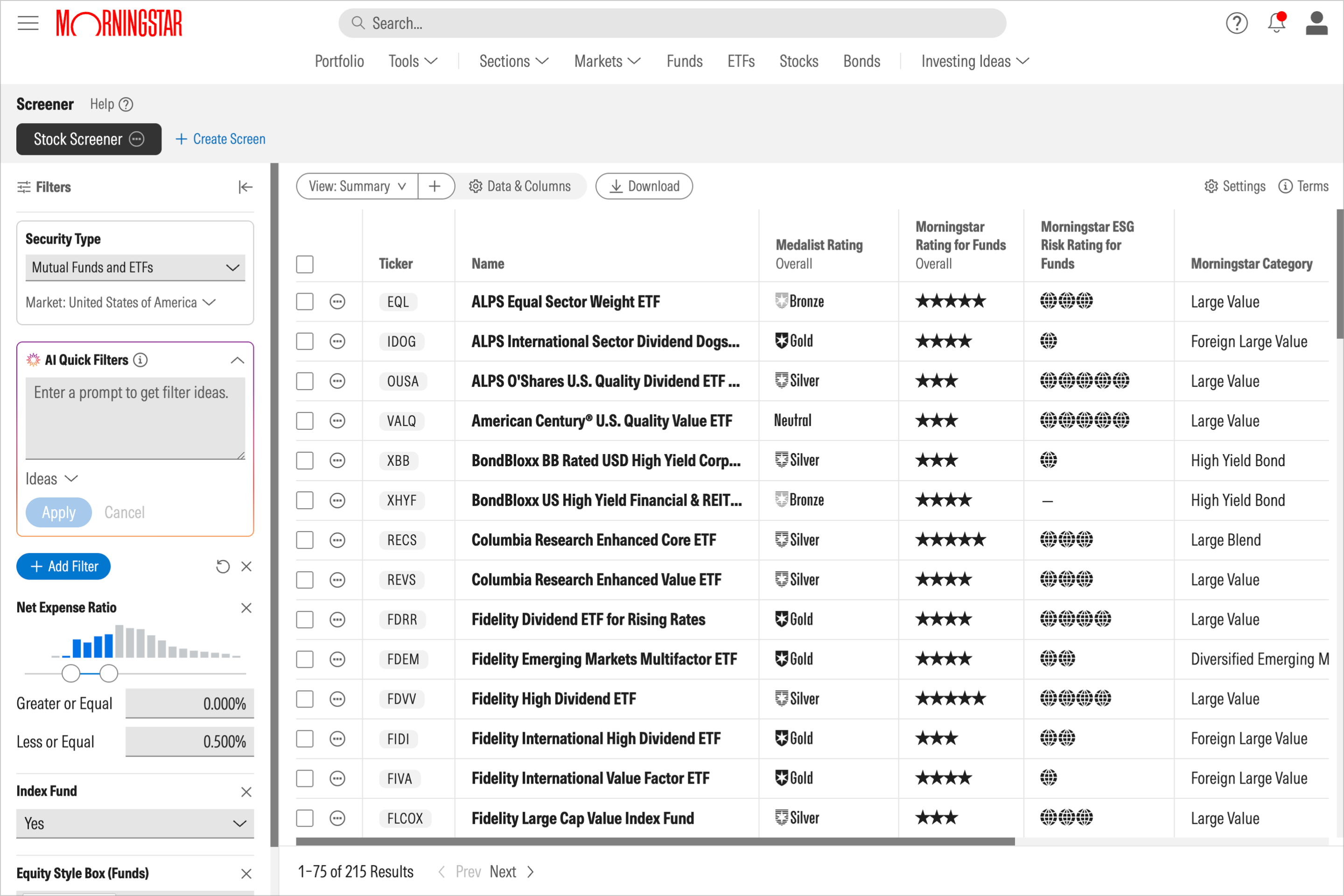
Depending on how complex your prompt is, it may take a few seconds to process. Once your results are complete, you’ll see a summary telling you how AI interpreted your prompt, with relevant filters listed below. Select Keep if you like what you see, or choose Undo to start over. You can also pick and choose which AI Quick Filters to retain or remove.
3. Customize the filters
If your prompt includes a preference for certain criteria to be met, it will typically show securities with a certain star, medalist, or moat rating, and provide ranges for data points. But you have complete control over the filters you see; if you wish to remove a data point added via AI Quick Filters, simply click the X icon to delete it. You can also adjust the ratings and ranges shown by selecting or deselecting the checkboxes that are relevant to you.
After using AI Quick Filters, you can manually add more filters to continue refining your search. And while the AI Quick Filters feature isn't meant as a conversational tool, and it doesn’t keep conversation history, you can use it to layer on filters as you go.
Note: AI can make mistakes, so we recommend you scroll through the AI Quick Filters results to confirm that they meet your requirements, and then make adjustments as necessary.
4. Morningstar Investor's Use of AI
As with any feature in Morningstar Investor or Morningstar.com, choosing to engage with AI Quick Filters is entirely up to you. For more information, check out What to Expect With Morningstar Investor's Use of AI.

 United States