
Create a screen
Learn how to create screens in Screener and choose between pre-defined screens or custom views.
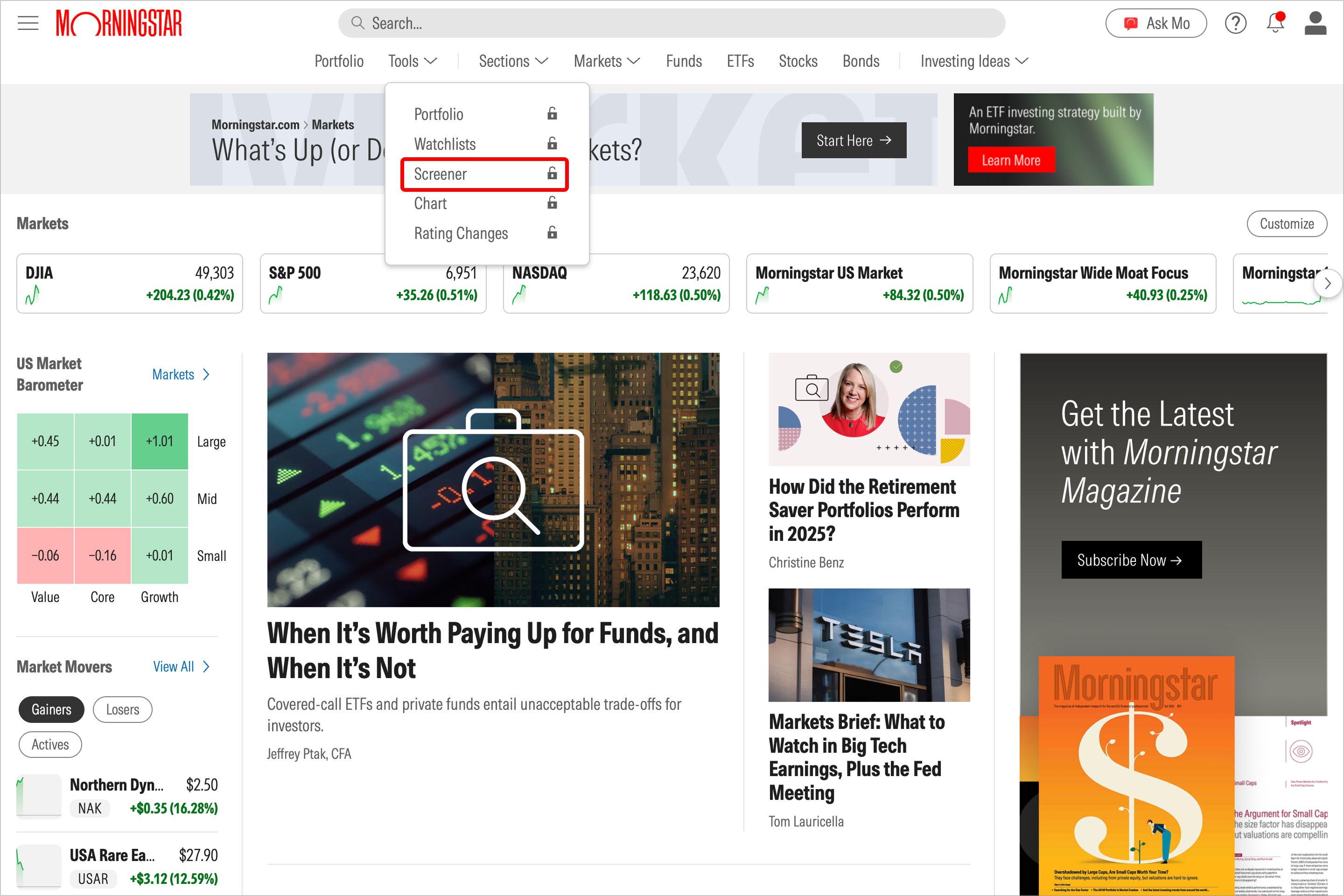
1. Navigate to Screener.
Select Screener from the Tools drop-down in the top or left-hand navigation.
2. Then choose the scenario that matches your experience:
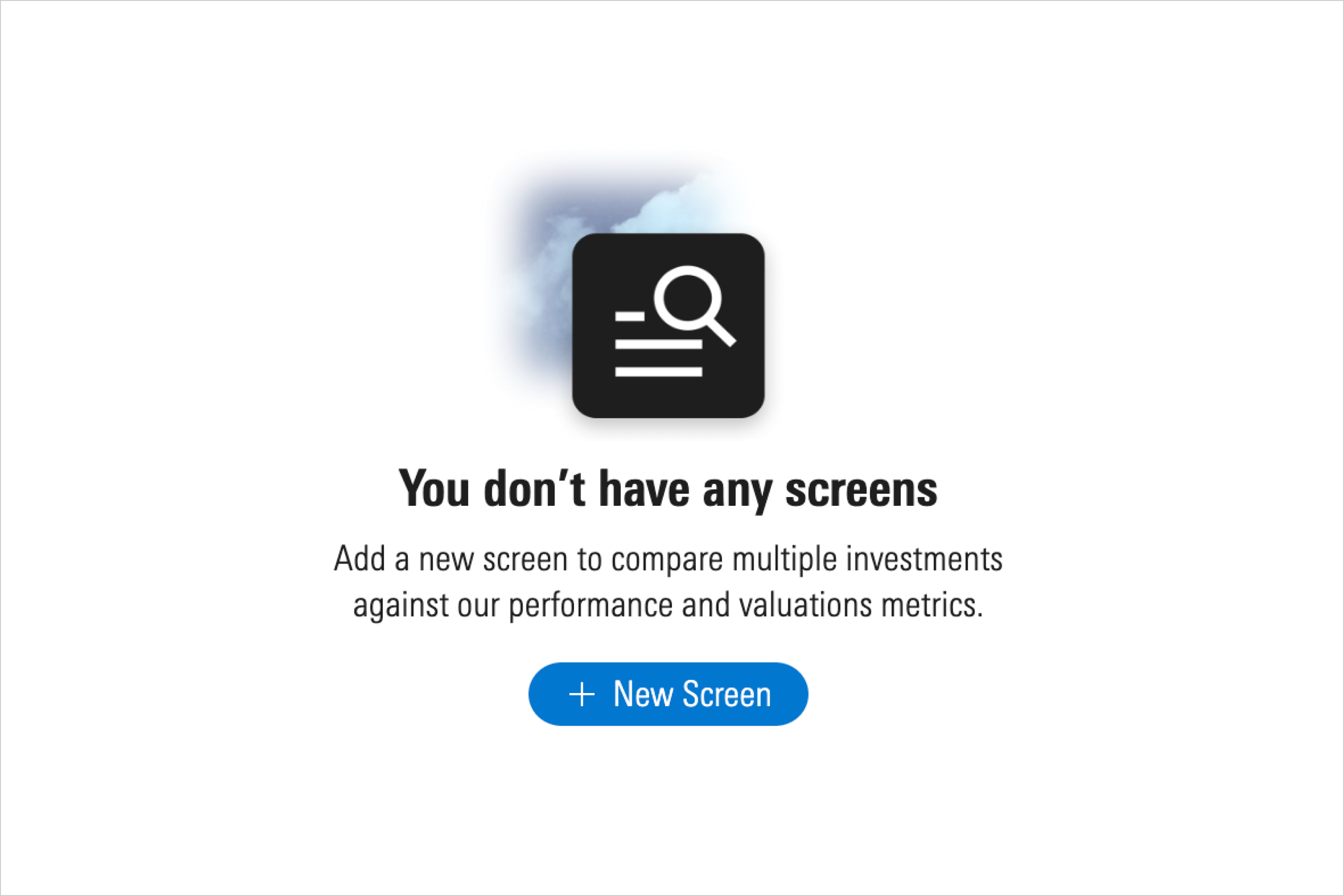
If you haven’t made a screen before, select New Screen.
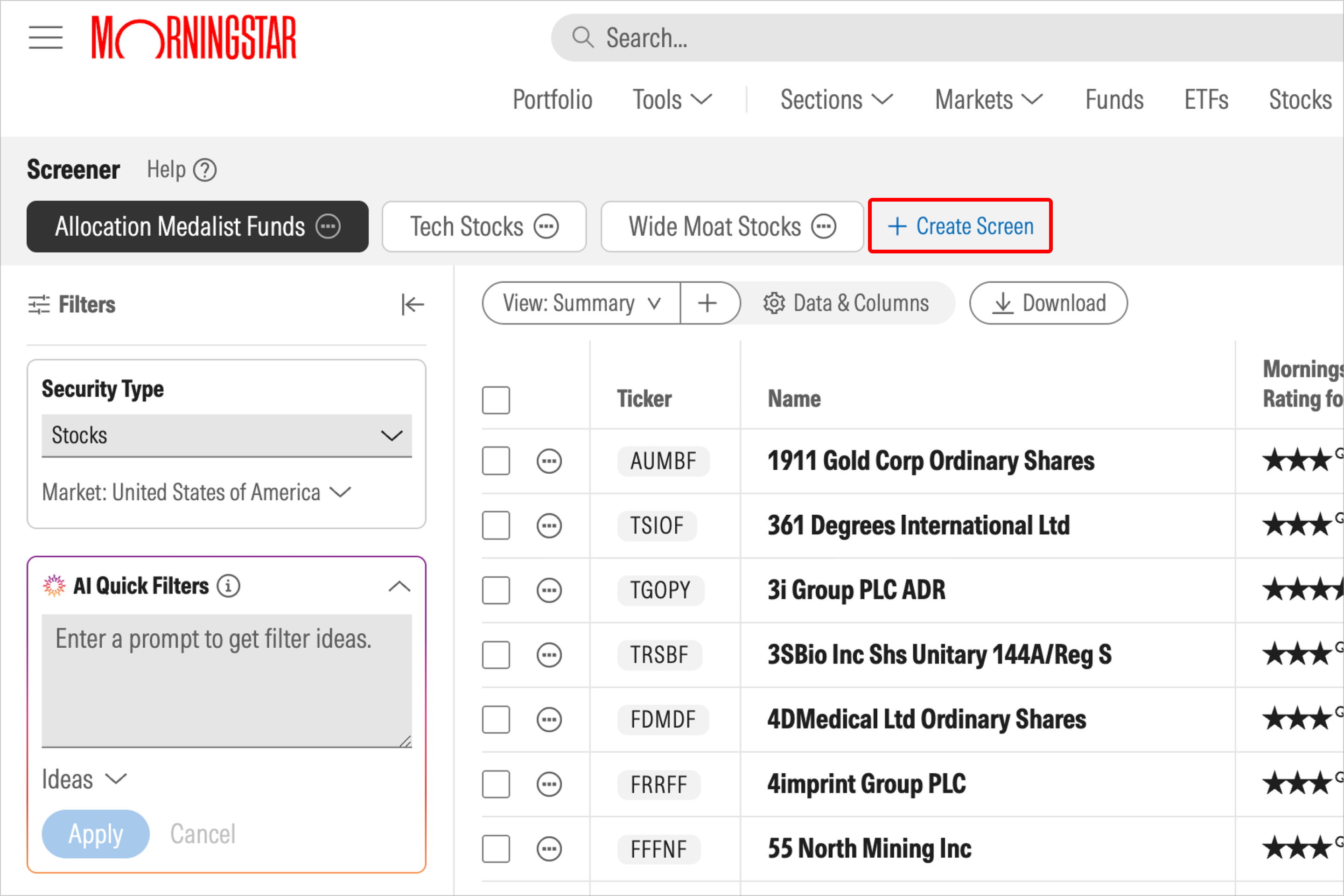
If you’re adding a new screen, choose Create Screen.
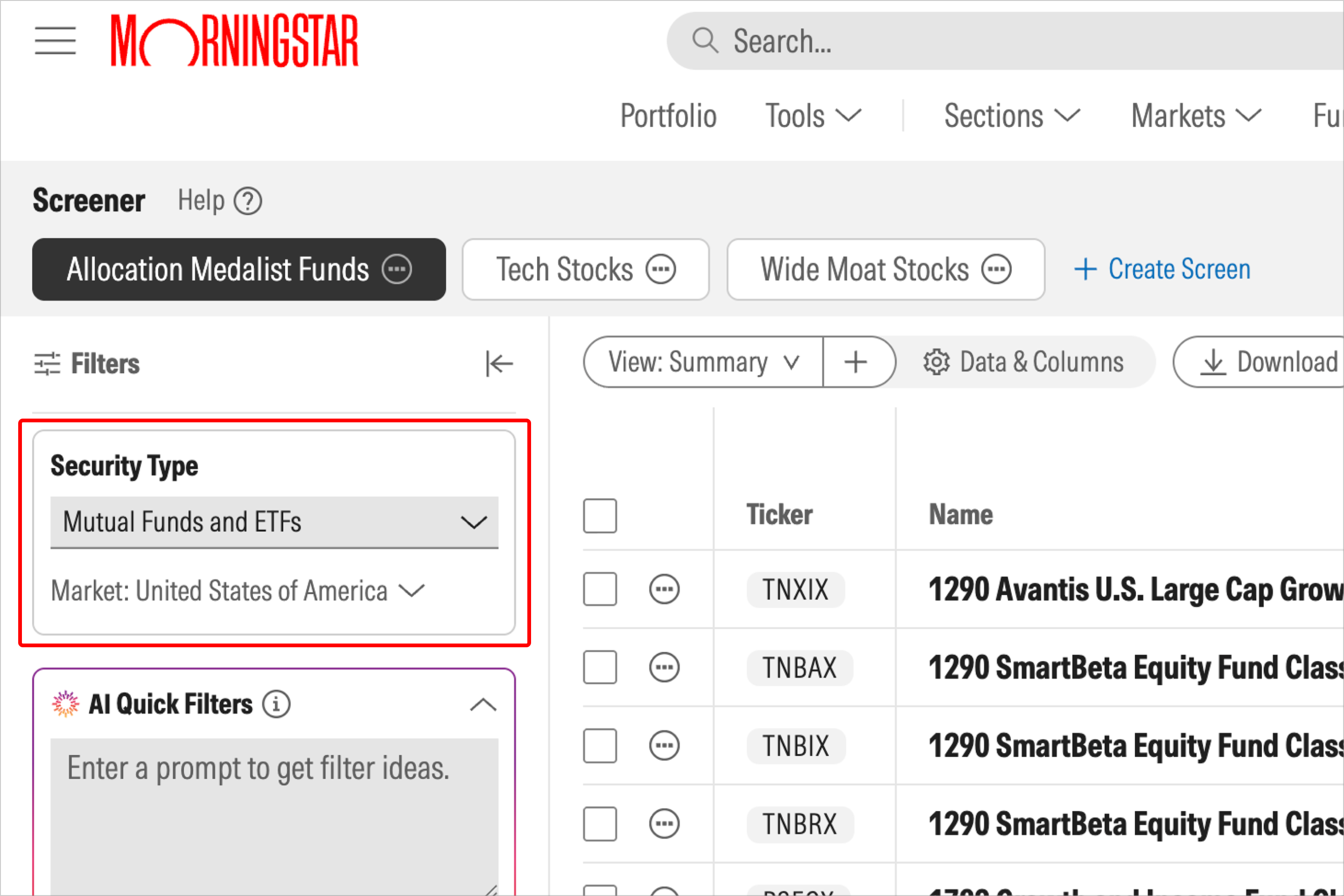
3. Select an investment type and add filters.
Select an investment type (stocks, mutual funds and/or ETFs, closed-end funds, or semiliquid funds) from the Investment Type drop-down menu.
Add filters from our entire catalog of datapoints, as well as the market, to more quickly narrow down the list of securities that meet your criteria. You’ll see the available data points differ based on which investment type you choose.
You can either add filters manually, or you can choose to use AI Quick Filters as an optional way to kick-start your search in Screener.
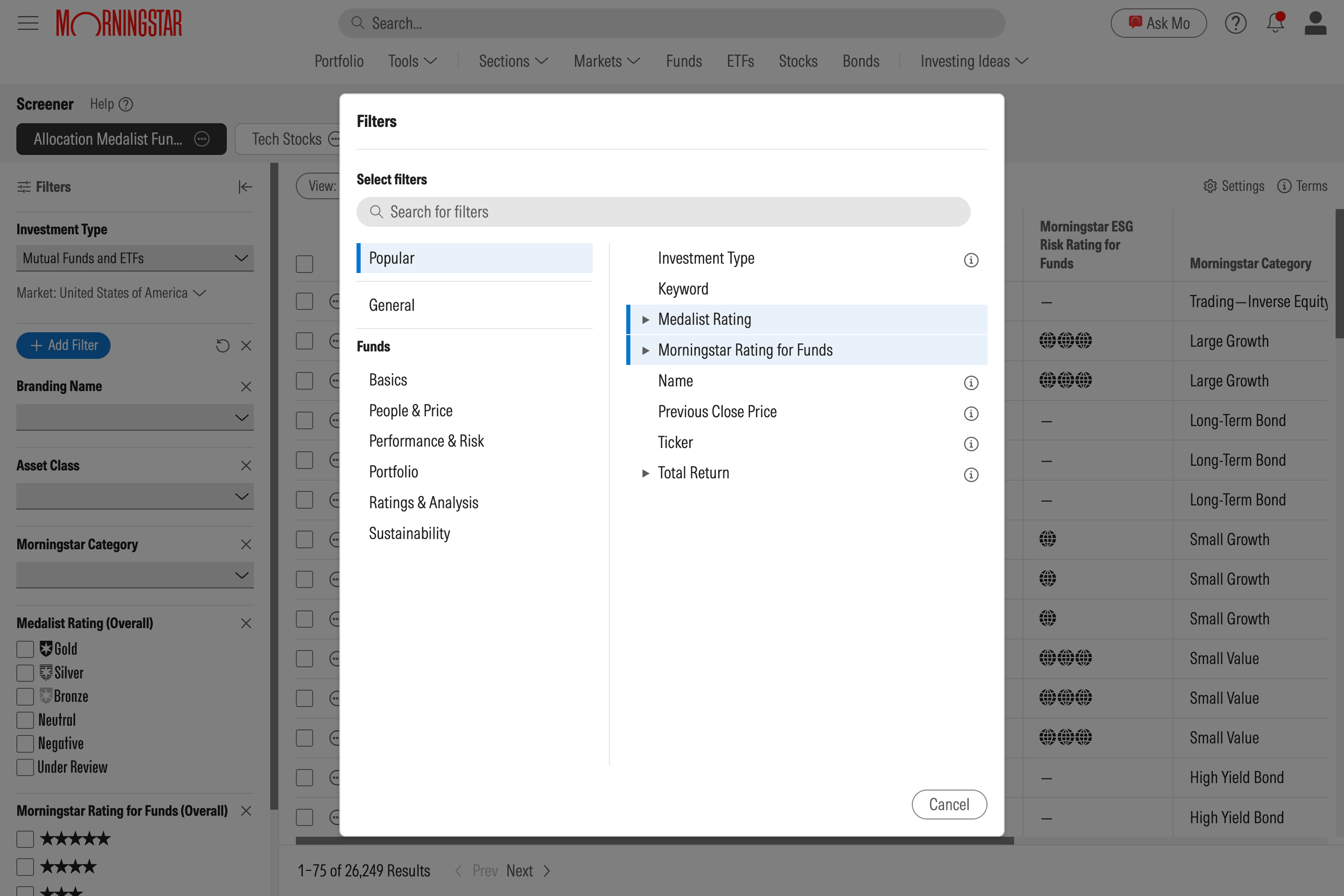
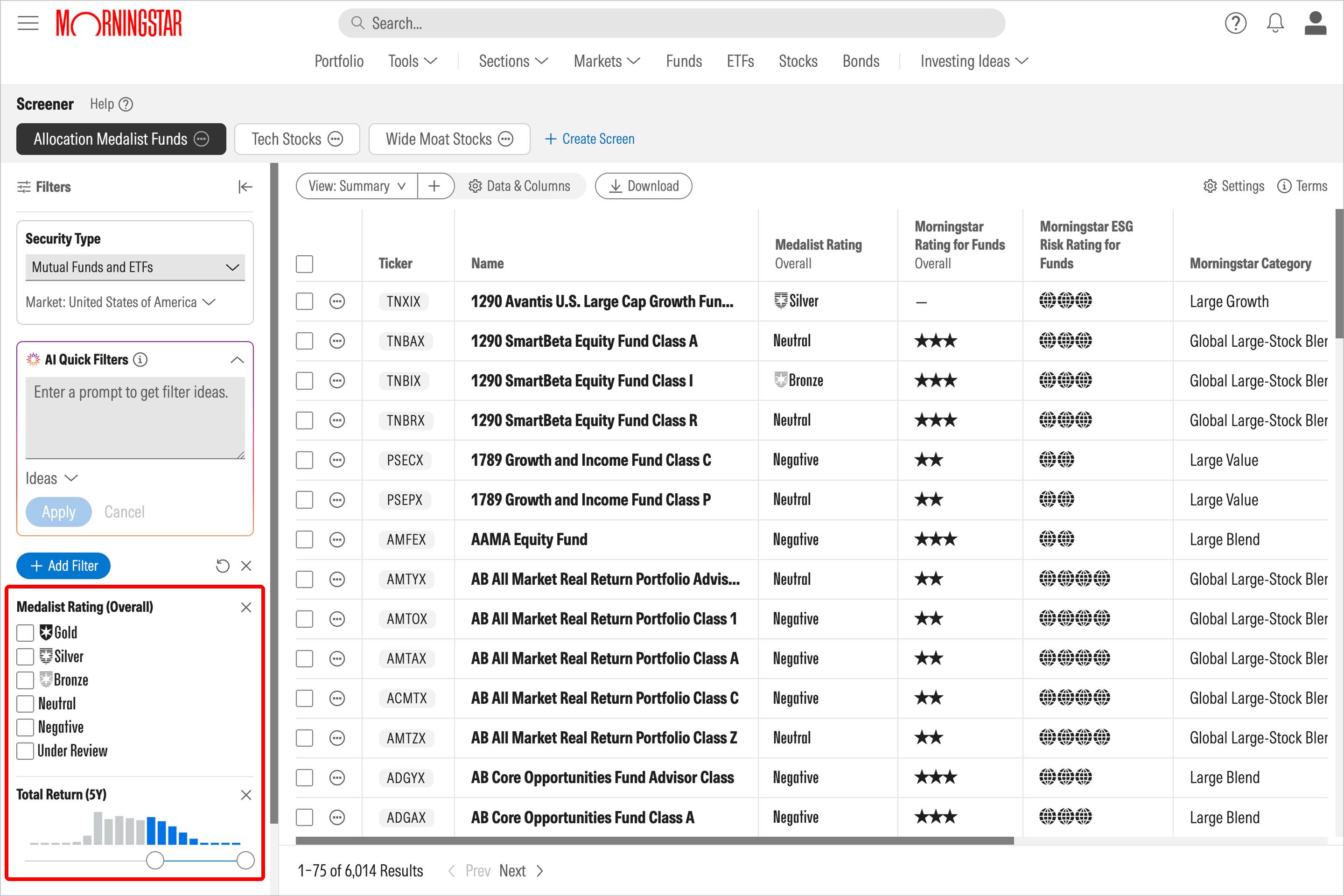
4. Customize the filters.
Customize the filters on the left-hand side of your screener to suit your preferences; for example, you can check boxes to display securities with a certain star, medalist, or moat rating, suppress quantitative ratings, and provide preferred ranges for data points.
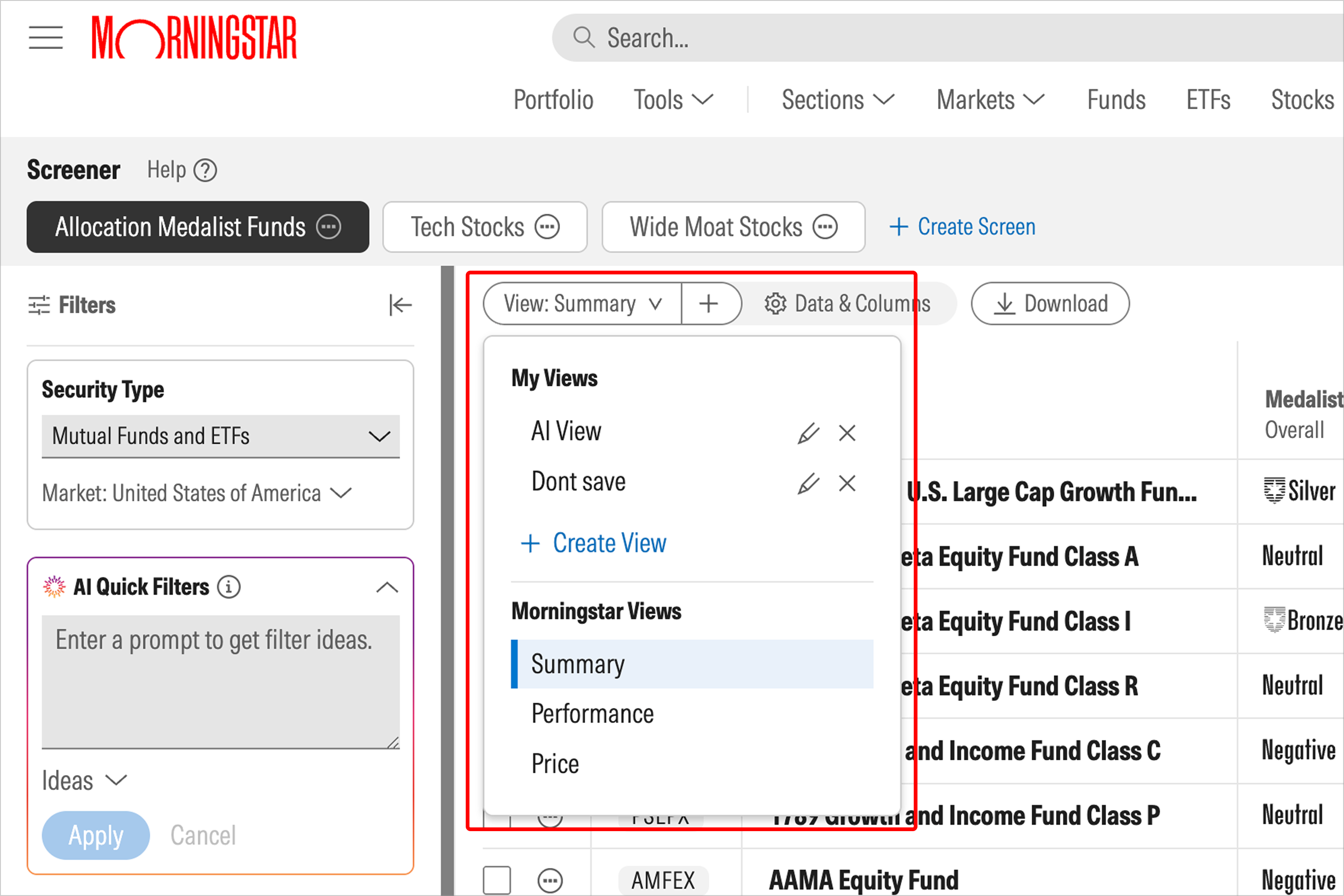
5. Choose a view.
From here, you’re ready to choose one of Morningstar’s pre-defined views, or create your own custom view with the criteria that matter most to you.
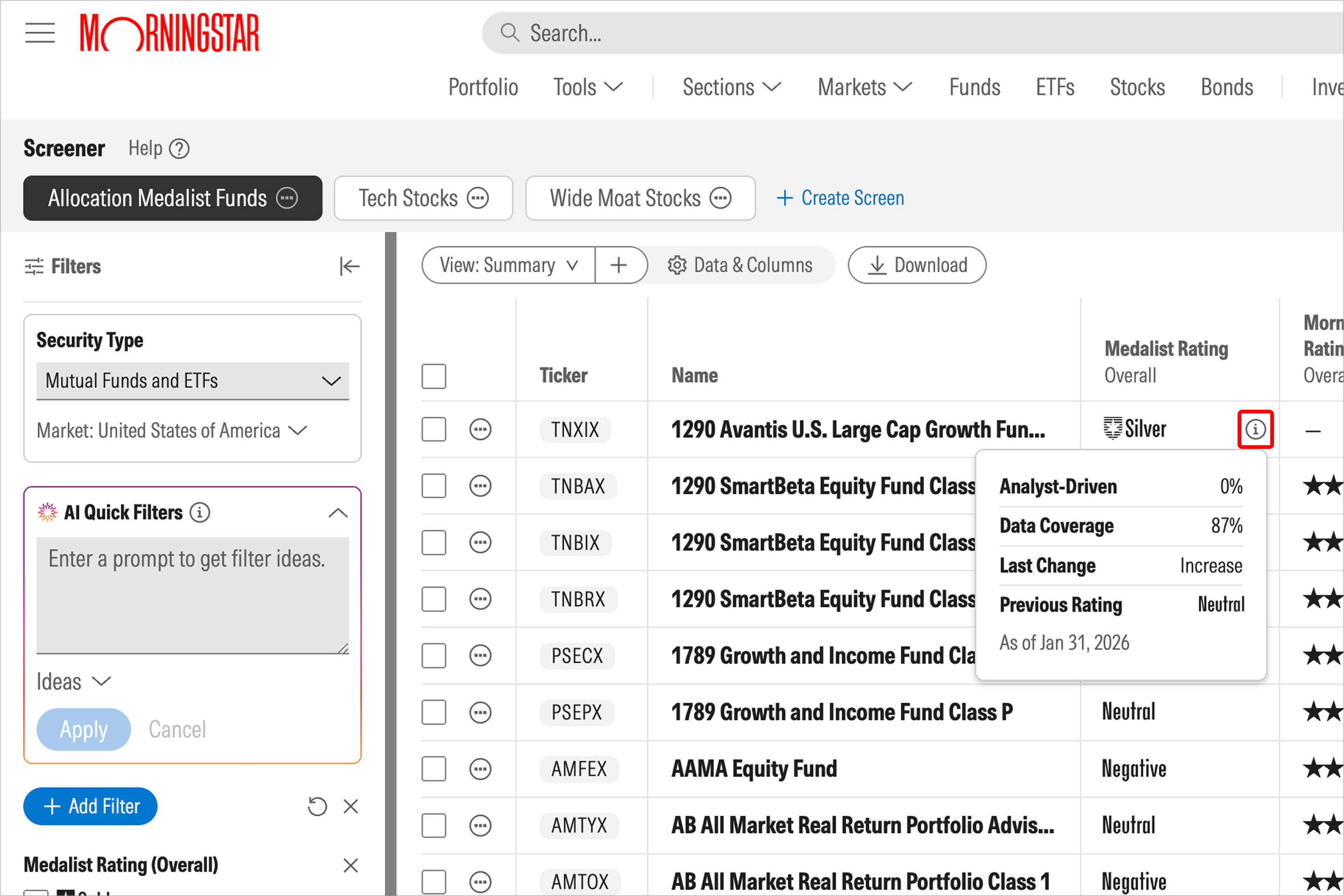
6. Click on the "i" icon in Your View to Get More Context.
Check the recency of various data points to understand when they were last updated and gain more context about their historical ratings.
7. Export your selections.
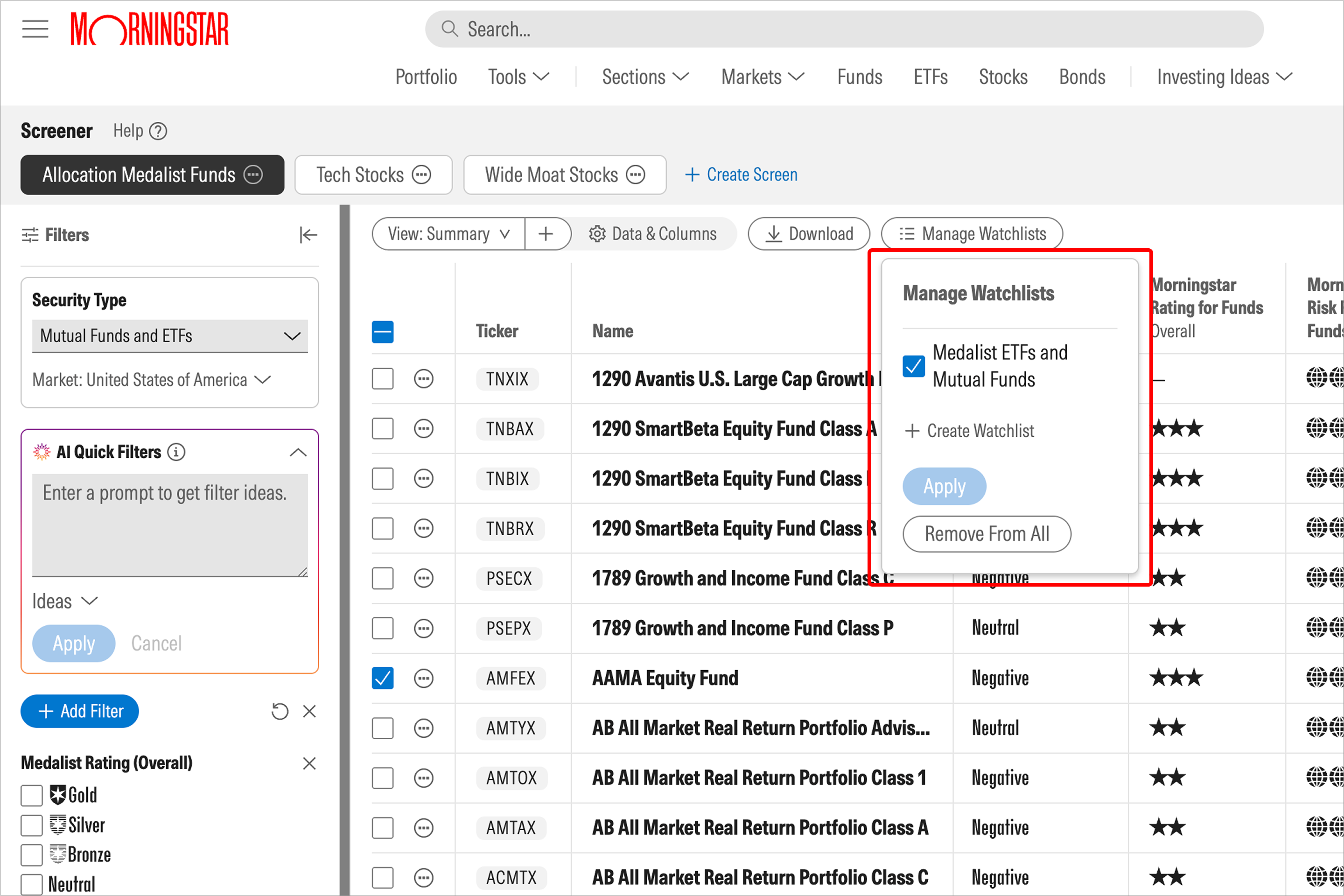
When you're content with your selections, you can add your screened securities to a watchlist for further monitoring.

 United States